Links marked “in Addora” open the matching screen in your Shopify admin. Sign in and choose your store if Shopify asks.
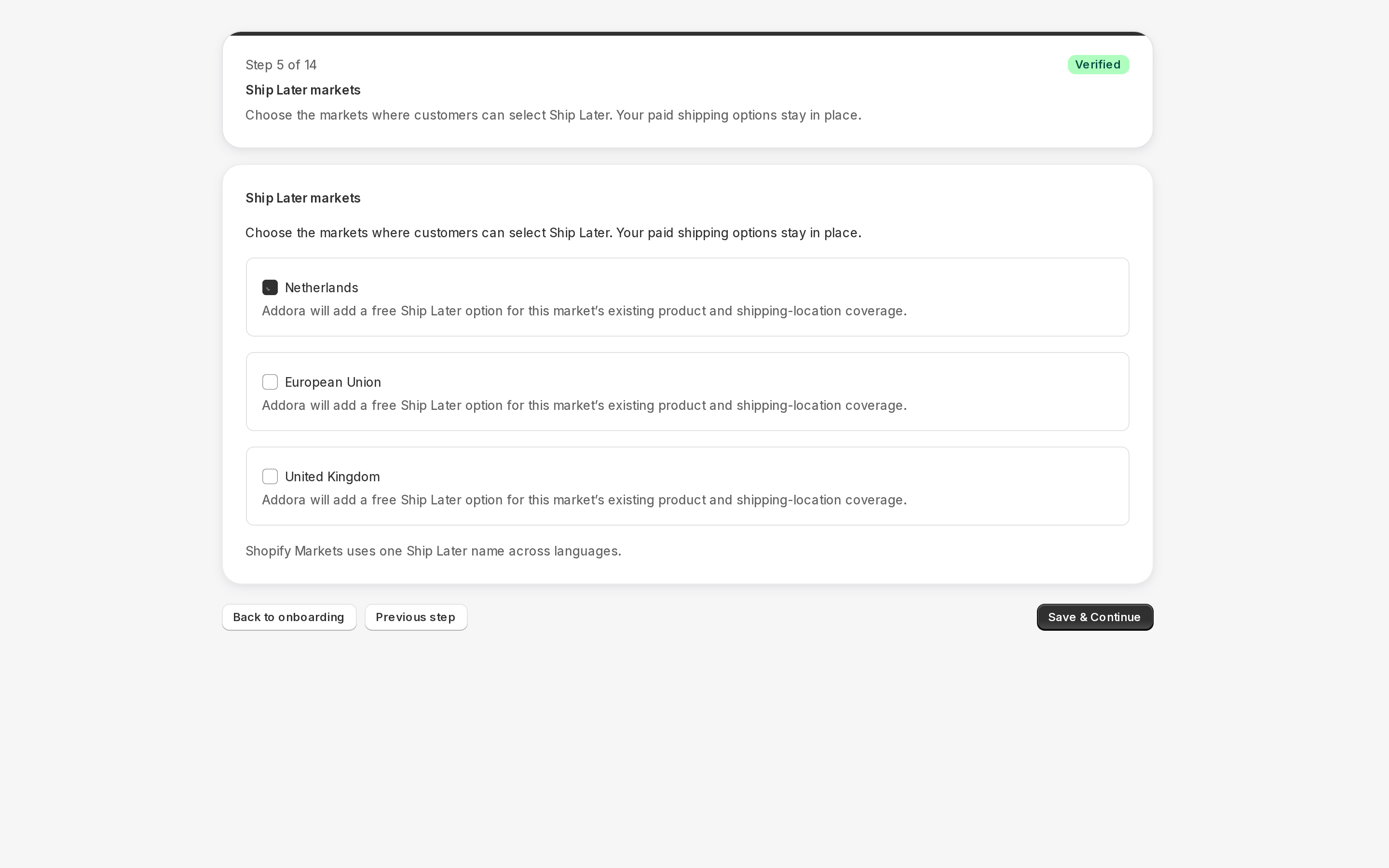
Open Settings, Ship Later in Addora ↗Open Ship Later coverage in Settings. Stores using market-driven shipping select eligible markets and complete the displayed coverage/approval checks; legacy stores select delivery profiles and zones. Saved coverage is not necessarily verified or active. Check the product, destination and selected setup path before testing checkout.
Quick check first
Open Settings, Ship Later (in Addora ↗) and look at the Delivery profiles tab. You should see at least one profile with a checkmark. If none are checked, Ship Later will not appear for any product. Enable the profile that covers the products you want to hold, then test checkout again.
Full checklist
- Delivery profile selected. Go to Settings, Ship Later (in Addora ↗). Tick the profile (or profiles) that include the products you want customers to be able to hold. If your store uses the Default profile for everything, tick Default.
- Feature activated. Apply and verify the selected setup, then activate Ship Later. Saved drafts and billing approval alone do not expose it to customers.
- Availability setting. If Ship Later is set to Only on pre-order or supplier carts, it will not appear for a cart containing only regular products. See Choose which carts offer Ship Later.
- Pre-order shipping setting. Don't show Ship Later hides it on pre-order and supplier carts. Combined with preorder-only availability, this hides Ship Later everywhere. See Mixed carts.
- Product classification. If a product should count as a pre-order but does not, check its tag or product classification. See Tell Addora which products to hold.
- Address not covered. If the customer is shipping to a country or region that your selected delivery profile does not serve, Ship Later will not be offered for that address. Check that the delivery profile's zones include the destination. See Cannot be shipped to this address.
- Marker-free name warning. Open Delivery and Checkout settings. If Addora says detection is paused or a name clashes with another shipping option, choose a distinctive name or switch back to Maximum compatibility. Remove any duplicate methods Addora identifies. See Remove the Addora marker safely.
- Optional acknowledgement. On Plus, the acknowledgement block has its own setup. Its absence is separate from whether the shipping rate is available.
If nothing on the checklist applies
A less common cause is that the setup was completed in a previous session but the delivery profile selection was later reset, for example after a Shopify delivery profile was deleted and recreated. Go back to Settings, Ship Later (in Addora ↗) and confirm that your profile still has a checkmark. If it was deselected, tick it again and test checkout.
STILL A QUESTION?
Let's work through it together.
Every store is a little different. We're here to help.