Links marked “in Addora” open the matching screen in your Shopify admin. Sign in and choose your store if Shopify asks.
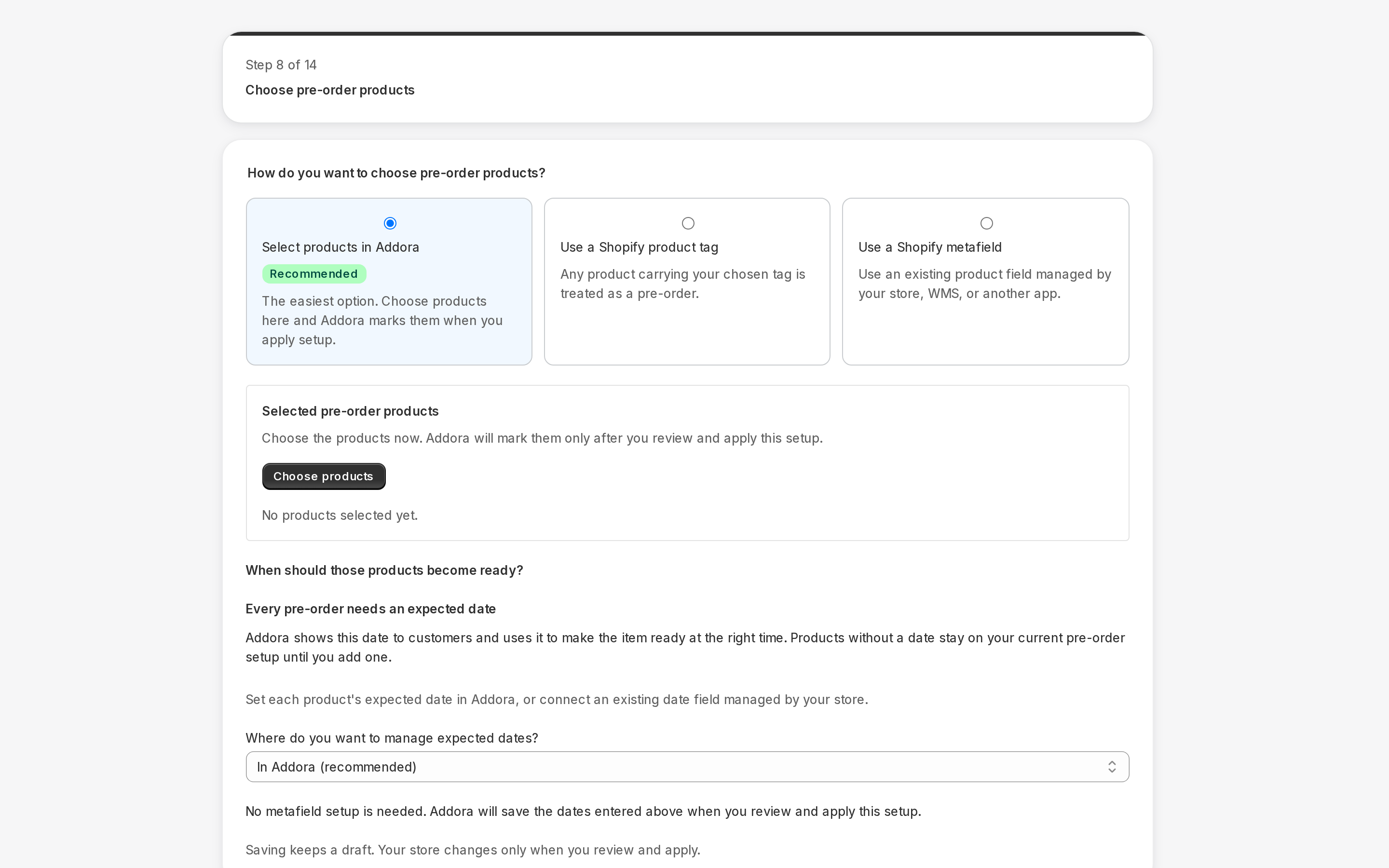
Open Settings, Pre-orders in Addora ↗Choose how Addora identifies preorder products: Select products in Addora, configured product tags, or a readable product/variant metafield. Fresh manual setup starts with product selection. Choose the method deliberately; saving a selection does not itself activate or finish publication of native purchase options.
The simple way: product tags
Addora looks at a product's tags in Shopify admin. If the tag matches the one you have configured, the product is treated as a pre-order or supplier item on every future order. By default Addora looks for the tag addora-preorder for pre-orders and addora-supplier for supplier items, but you can change these to any tag you already use.
- Go to Settings, Pre-orders (in Addora ↗).
- Under Which products get held?, find the Pre-order tags and Supplier order tags fields.
- Enter the tag you use in Shopify for each type. Separate multiple tags with commas. Capitalisation does not matter.
- Click Save.
- Add the matching tag to each product in Shopify admin (Products, then edit the product and add the tag in the Tags field). You can also do this in bulk from the Settings, Pre-orders (in Addora ↗).
The advanced way: a product field
If another app already marks your products as pre-order or supplier items using a product field, you can point Addora at that field instead of adding tags. This way you do not have to re-tag your whole catalogue.
- Go to Settings, Pre-orders (in Addora ↗).
- Open the advanced option for connecting another app's product data.
- Choose the product field that marks an item as a pre-order. The other app’s documentation will tell you which field to use.
- Do the same for supplier items if you sell them.
- Click Save.
Test your classification setup
After configuring tags or a product field, you can check that a specific product would be classified correctly before going live. In the Settings, Pre-orders (in Addora ↗), expand the advanced section and use the Test classification tool. Paste a product identifier, click Test classification, and Addora shows you how each variant would be categorised and why.
The catalogue updates in the background
Classification changes reconcile in the background. Check sync progress, product publication and a real purchase option before announcing availability. A saved manual selection does not by itself activate the feature.
For manual selection, open Setup, choose Select products in Addora, search and select the intended products and variants, then review their expected dates. Apply the configuration, wait for catalog/publication progress and verify the purchase connection before activation. Use the classification test when a tag/metafield result is unexpected.
STILL A QUESTION?
Let's work through it together.
Every store is a little different. We're here to help.