Addora's bulk print action makes one packing slip for each selected order that should be packed. You can print normal orders and Addora shipments in the same batch.
Where to find it
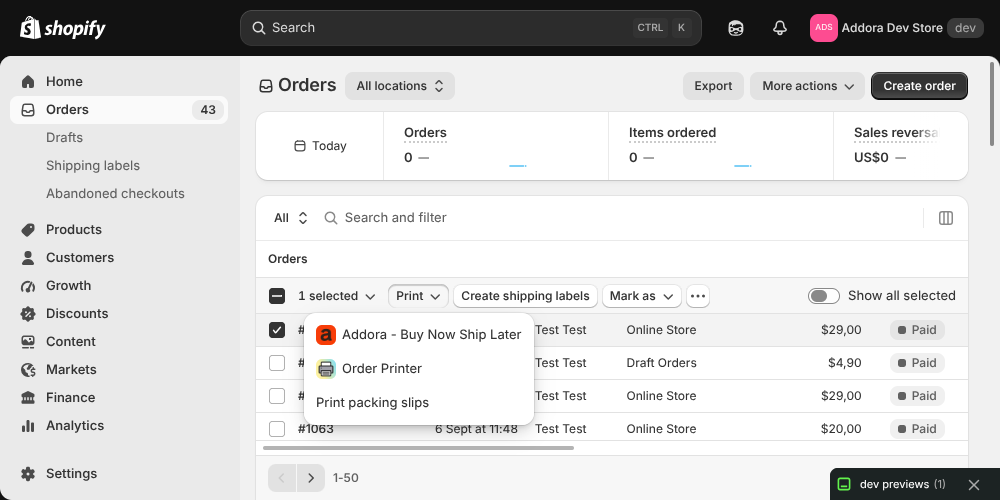
- In Shopify Admin, open Orders and select the orders you want to print. You can use a saved order view to find them first.
- Open the Print menu above the order list and choose Addora.
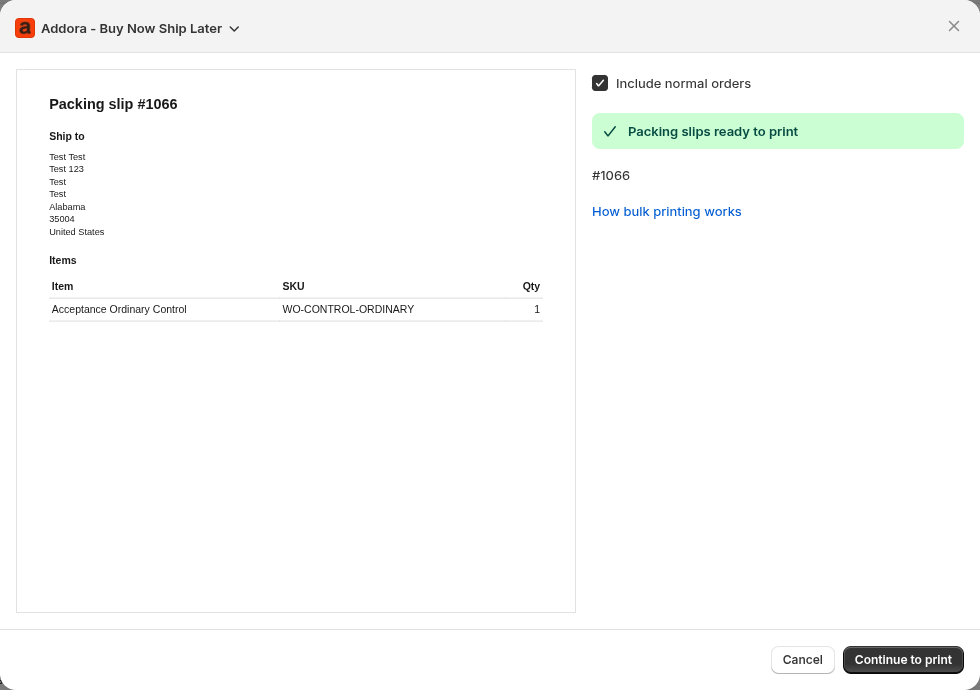
- Leave Include normal orders on if this batch includes regular Shopify orders. Turn it off to print only Addora shipment orders.
- Check the list of slips and any skipped orders, then choose Continue to print.
Which Addora order prints?
For a combined shipment, Addora prints the combined order. If your store creates a separate shipment order, Addora prints that shipment order instead of the payment order. It uses the mode recorded when each shipment was created, so older and newer shipments can be printed together.
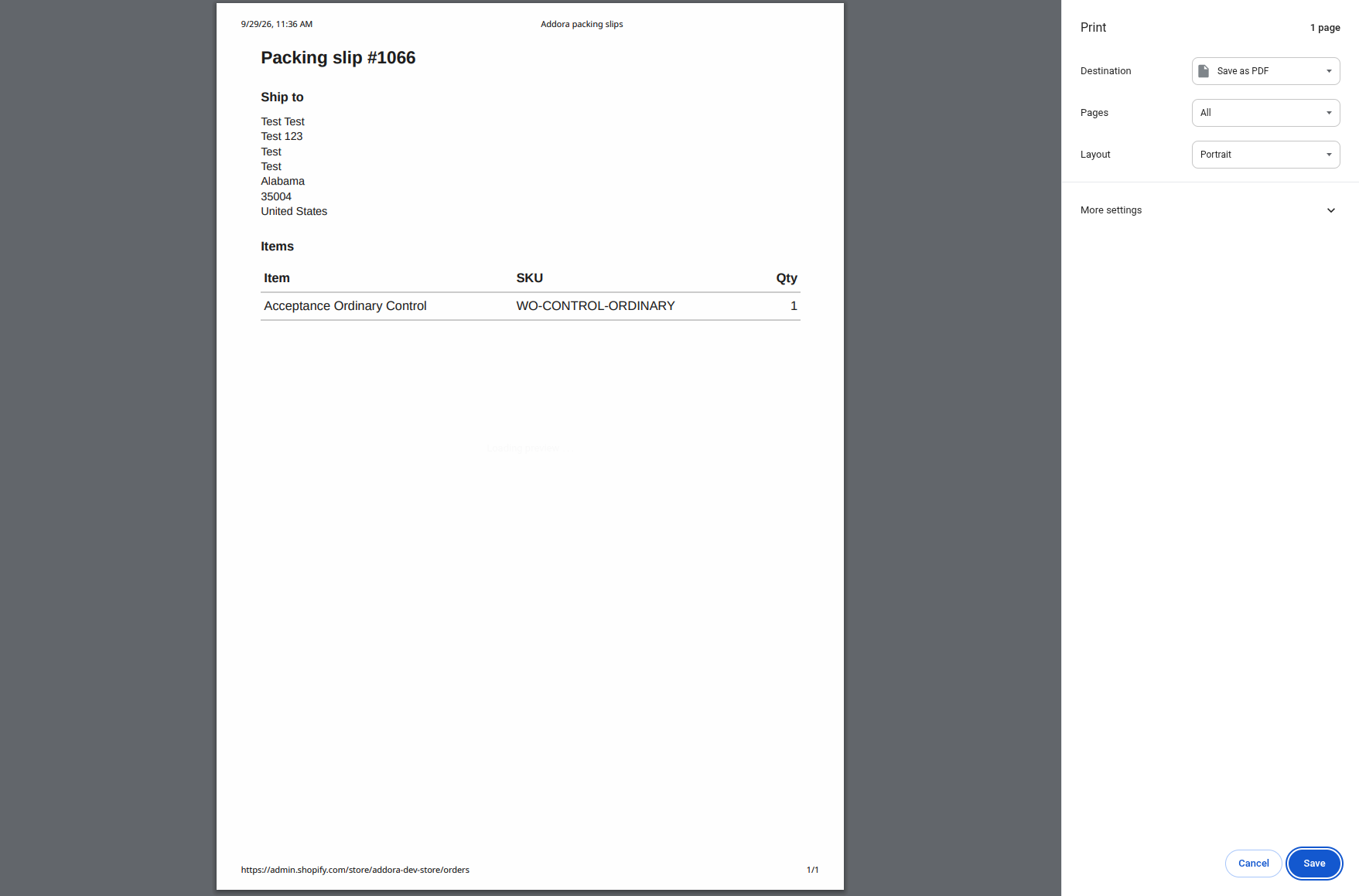
Each slip lists only physical items still ready to fulfill. Held and already shipped items stay off the slip. If an original also has items paid for through an Addora shipment, those portions stay off its slip even when that older shipment is not selected. If nothing ready remains, the original is skipped. Select the shipment order to print those items.

In split mode, the payment order and shipment order are different records. Test shipment orders deliberately have no customer association, so a third-party template cannot read that customer’s metafields through the shipment order. Do not attach a customer as a workaround.
Use Addora’s customer fields, packing slip presets or picking lists for these workflows. Our settings do not change the output of another printing app.
STILL A QUESTION?
Let's work through it together.
Every store is a little different. We're here to help.