Links marked “in Addora” open the matching screen in your Shopify admin. Sign in and choose your store if Shopify asks.
Open Packing slip settings in Addora ↗Choose the batch and grouping
In Shopify Orders, select up to 50 orders and choose Print → Addora. You can also open Addora from a single order’s Print menu. Choose Picking list.
Choose By order for parcel allocation, or By product to total matching variants across selected parcels. Choose original, SKU or Name sorting and optionally a fulfillment location. Locations are filtered before quantities are grouped.
Check the physical quantities
Only physical items currently ready and remaining to fulfill are included. Held and already fulfilled items are excluded. Payment copies are not packing authorities. Select the actual shipment order for billed Addora items.
Product totals keep variant, location and personalization separate. Duplicate SKUs are not enough to merge lines. Custom or deleted-variant items stay separate when identity is uncertain. Each grouped row shows its parcel allocations.
A picking list helps warehouse staff collect items. Use the individual packing slips to put the correct quantities into each parcel. Printing does not reserve inventory, mark fulfillment or remember whether you printed earlier. If a location cannot be verified, fix the selection and reopen Print.
Warnings and preview
Required customer fields apply to packing slips. Picking lists do not read or require customer fields.
If historical source details are missing or ambiguous, Addora keeps picking rows separate and shows a screen-only warning. Unavailable source properties are omitted from slips; source references show only orders that could be read. Warnings do not print.
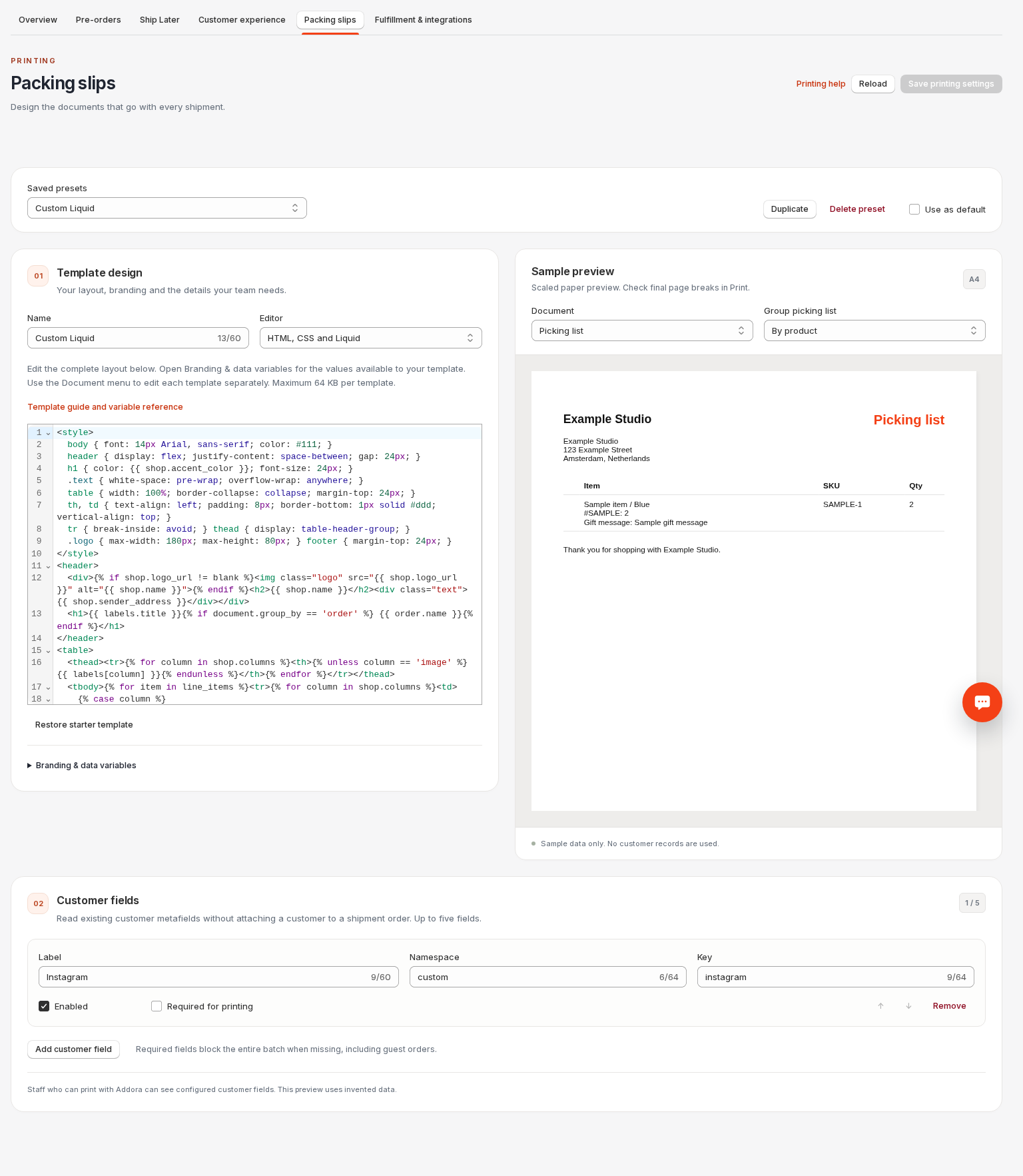
In Packing slip settings, choose Picking list under Document, then preview By order or By product. The grouping starts at By order, matching Print. Confirm the grouping, location and sorting again in the Print action before printing.
STILL A QUESTION?
Let's work through it together.
Every store is a little different. We're here to help.