Links marked “in Addora” open the matching screen in your Shopify admin. Sign in and choose your store if Shopify asks.
Open Email template assistant in Addora ↗Shopify's default Order confirmation email tells every customer their order is confirmed and on its way. For a Ship Later order that wording is wrong: the items are reserved and waiting, not in the post. Fixing the email sets the right expectation from the start and reduces confused support messages.
Use the in-app email template assistant
The fastest way to update your confirmation email is the email template assistant (in Addora ↗). It reads your existing Shopify template, adjusts only the Ship Later sections, and hands you the finished code to paste back. You do not need to understand HTML to use it.
- Open the email template assistant (in Addora ↗) in Addora.
- In Shopify Admin, go to Settings, then Notifications, then Customer notifications, then Order confirmation, then click Edit code.
- Click inside the Email body (HTML) box, press Ctrl+A (Cmd+A on Mac) to select all, then Ctrl+C to copy.
- Paste the copied code into the assistant's text box.
- Choose which sections to update (the defaults are recommended), then click Generate updated template.
- Copy the new Email subject from the assistant and paste it into the Email subject field in Shopify.
- Copy the new Email body (HTML) from the assistant and paste it into the Email body (HTML) box in Shopify, replacing everything that was there.
- Click Save in Shopify.
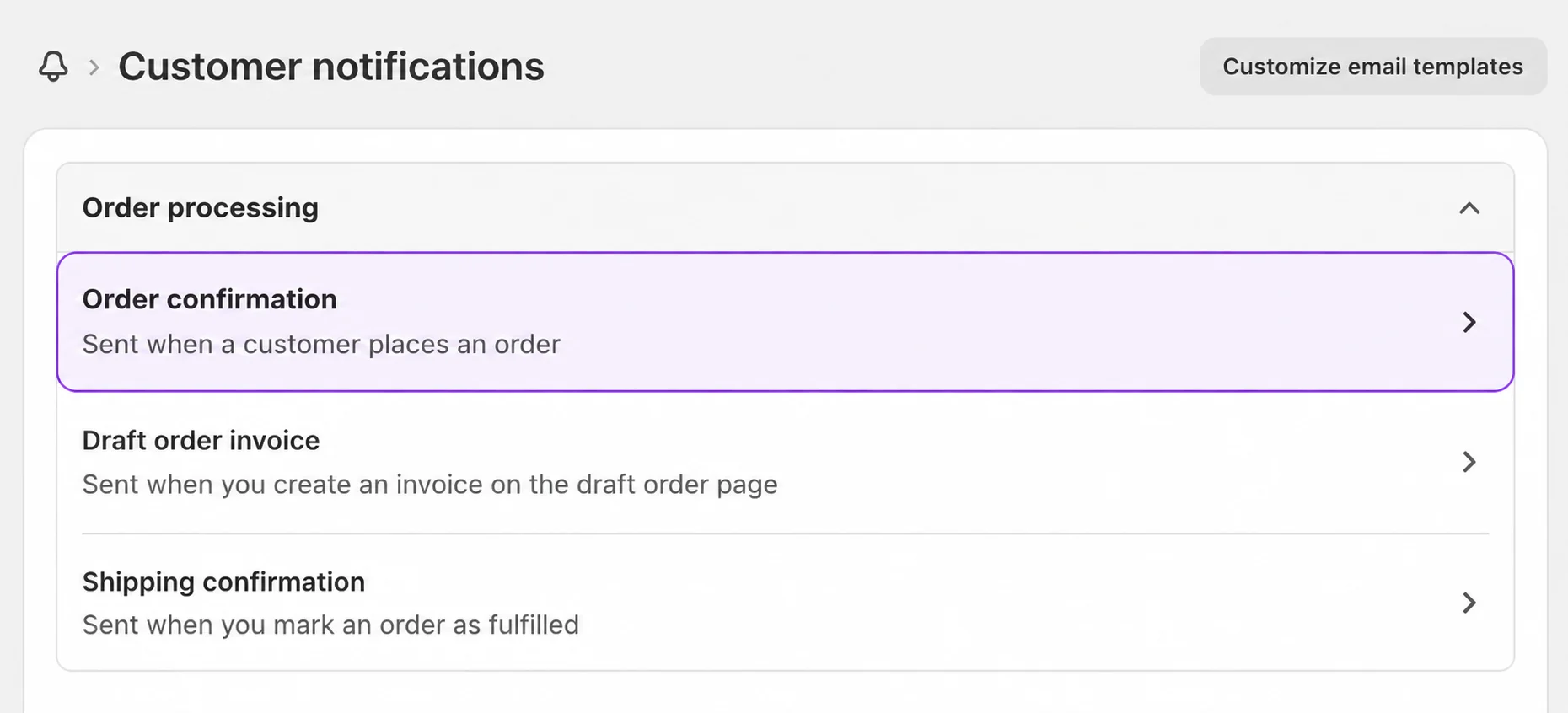
Send a test email
After saving, use Shopify's Send test email button (shown at the top of the Order confirmation editor) to send yourself a preview. Check that the subject and body reflect a pending shipment, not immediate shipping.
Manual option
If you prefer to edit the template yourself without the assistant, go to Settings in Shopify Admin, then Notifications, then Customer notifications, then Order confirmation, then Edit code. The email template assistant (in Addora ↗) also includes a Manual guide tab with individual code snippets you can paste into specific sections of the template.
Update it when Ship Later names change
Run the assistant again after switching to marker-free detection, renaming Ship Later or publishing another checkout language. The template needs the current names so it can show held-order wording to the right customers. See Remove the Addora marker safely.
In Customer emails, use the shared branding controls to upload or link a logo, choose accent/background and preview the result. Preview changes are not saved settings; save deliberately before enabling delivery. The confirmation-template assistant has its own Generated email language choice.
STILL A QUESTION?
Let's work through it together.
Every store is a little different. We're here to help.