Keep Addora open beside this guide.
Links marked “in Addora” open the matching screen in your Shopify admin. Sign in and choose your store if Shopify asks.
Open Onboarding, Customer order page in Addora ↗Customers need a page on your storefront where they can see all their held orders and choose when to ship them. This page is powered by the Addora Customer Orders block. Setting it up takes four steps.
Step 1: Create a page in Shopify
- In Shopify Admin, go to Online Store, then Pages.
- Click Add page.
- Give the page a clear title, such as "My Orders" or "Order Summary".
- Leave the page content (body) empty. The Addora block fills the page.
- Click Save.
Step 2: Add the Customer Orders block to the page
- In Shopify Admin, go to Online Store, then Themes.
- Next to your published theme, click Customize.
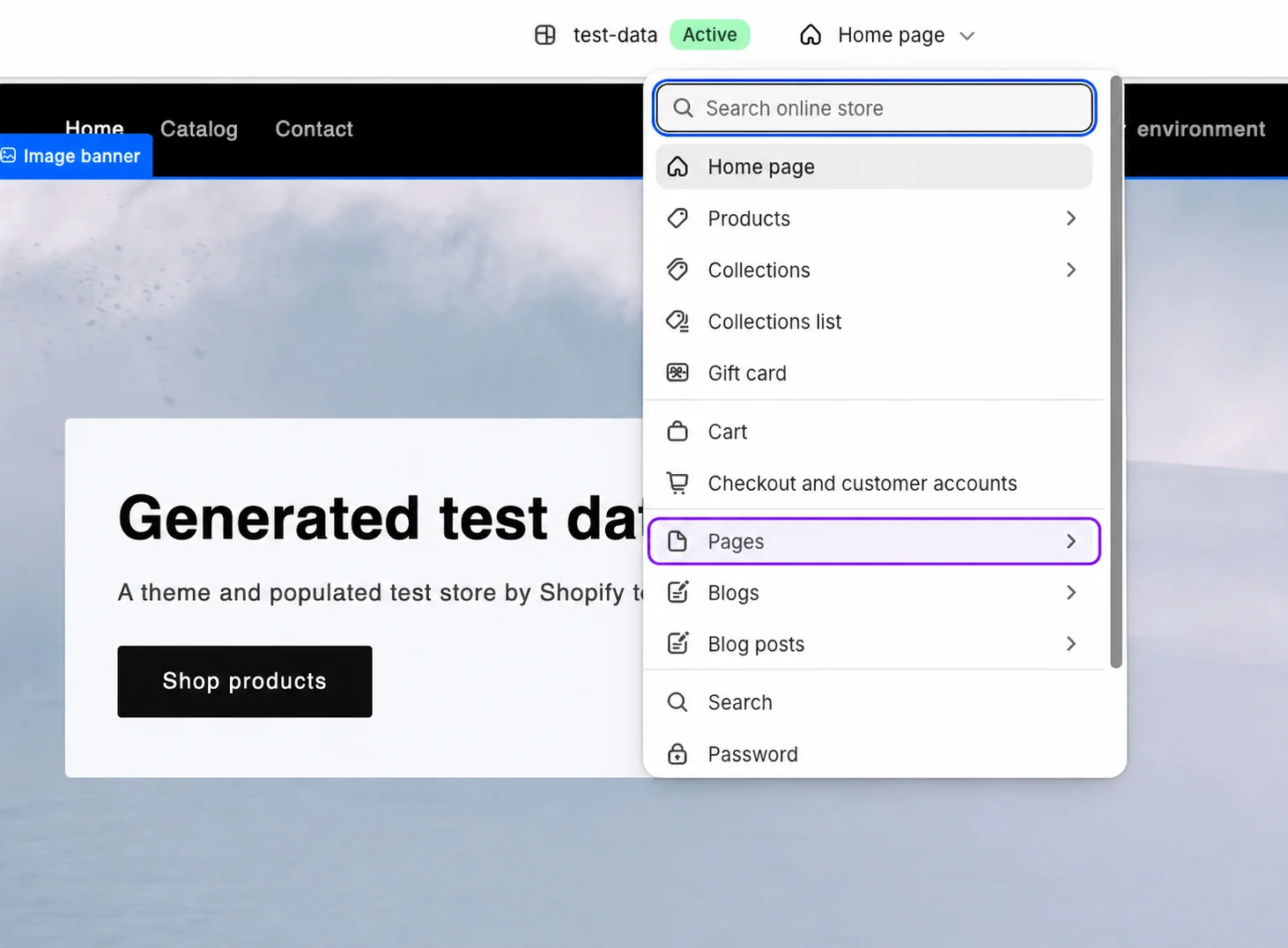
- Create or choose a dedicated Page template, add the Customer Orders block, save it, and assign that template to the page in Shopify. Verify the intended published theme; editing a different template or draft theme does not connect the live page.
- In the left panel, click Add section (or Add block, depending on your theme layout).
- Under Apps, find and select Customer Orders.
- Click Save.
PRODUCT WALKTHROUGH Example interface
Step 3: Enable the Addora app embed
- While still in the theme editor, look at the bottom of the left sidebar and click App embeds.
- Find Addora (it may appear as "Customer Orders embed" or "Ship Now CTA embed") and toggle it on.
- Click Save.
Step 4: Add the page to your store menu
- In Shopify Admin, open Content → Menus.
- Open the menu where you want the link to appear (for example, your main menu or footer).
- Click Add menu item.
- Set the name (for example, "My Orders") and link it to the page you created.
- Click Save menu.
Verify it works
- Open your storefront in a private or incognito window.
- Log in as a test customer who has at least one held order.
- Navigate to the orders page you created.
- Confirm the held orders table loads and the Ship Now button appears.
STILL A QUESTION?
Let's work through it together.
Every store is a little different. We're here to help.