If you open the Shopify theme editor and cannot see the Customer Orders block (or any Addora block) in the Apps section, there are two common causes. Both are easy to fix.
Check block placement and runtime separately
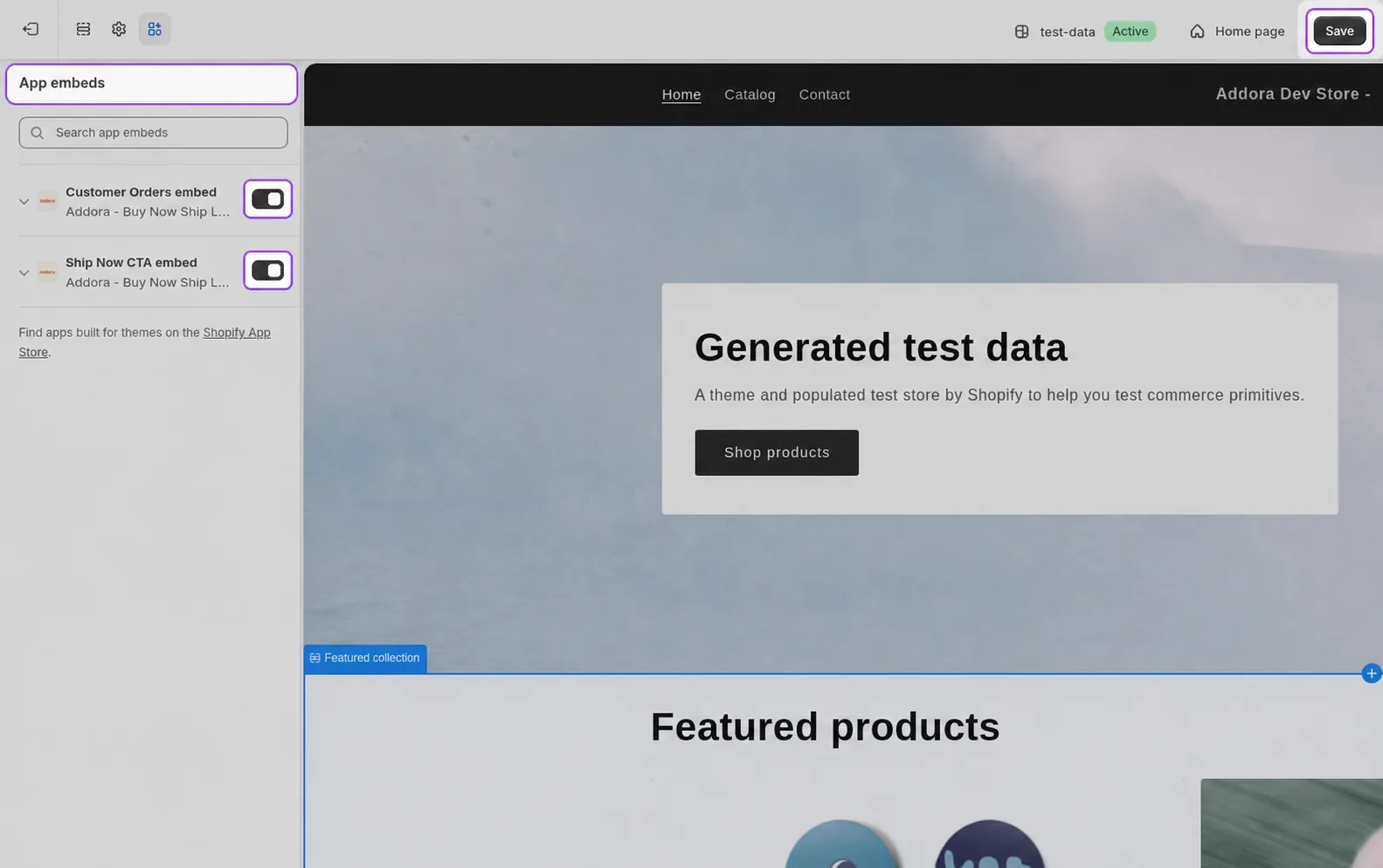
App blocks and app embeds are separate. An embed being off does not by itself remove every app block from Shopify’s picker. First check that the selected theme section/template supports app blocks and that Addora is installed; separately enable Addora’s runtime embed for the storefront page to work.
- In Shopify Admin, go to Online Store, then Themes.
- Next to your published theme, click Customize.
- At the bottom of the left sidebar, click App embeds.
- Find Addora and toggle it on.
- Click Save.
- Return to a supported Page template and install the block if it is not already present. Refresh the editor, confirm the chosen template assignment, then verify the published page from Setup.
Cause 2: You are editing a page or template that does not support app blocks
Not every page template in Shopify supports third-party app blocks. Some account-related templates in newer Shopify themes use a different layout system that does not expose the Apps section in the block picker.
- The Customer Orders block works on the Page template, the Account template (customers/account), and the Home page template.
- If you are on a newer theme and see a "Customers" section or an account page template that shows no Apps option, that specific template does not support app blocks.
- The recommended approach is to create a dedicated page (using the Page template) and add the Customer Orders block there. Follow the steps in Add the customer order page.
Still not seeing the block?
- Make sure you are editing the correct theme. If you have multiple themes, confirm you enabled the embed on the published one.
- After enabling the app embed, refresh the theme editor before looking for the block.
- If the block appears but is greyed out, check that you are on a template that supports it (Page, Account, or Home).
- If you still cannot find it, reach out to support.
STILL A QUESTION?
Let's work through it together.
Every store is a little different. We're here to help.