Links marked “in Addora” open the matching screen in your Shopify admin. Sign in and choose your store if Shopify asks.
Open Onboarding, Customer order page in Addora ↗Addora can add a held orders page and helpful blocks right inside the Shopify customer account area, so customers manage their reserved orders without leaving their account. This is the built in option, and it sits alongside the storefront page covered in Add the customer order page. You can offer either or both.
Before you start
- The Addora app is installed and your basic setup is done. See Get live with Addora.
- Review how customers currently sign in, including any custom sign in links, saved customer segments, or Multipass logins. This guide turns on new customer accounts near the end, once the page and blocks below are ready.
1. Open the customer account editor
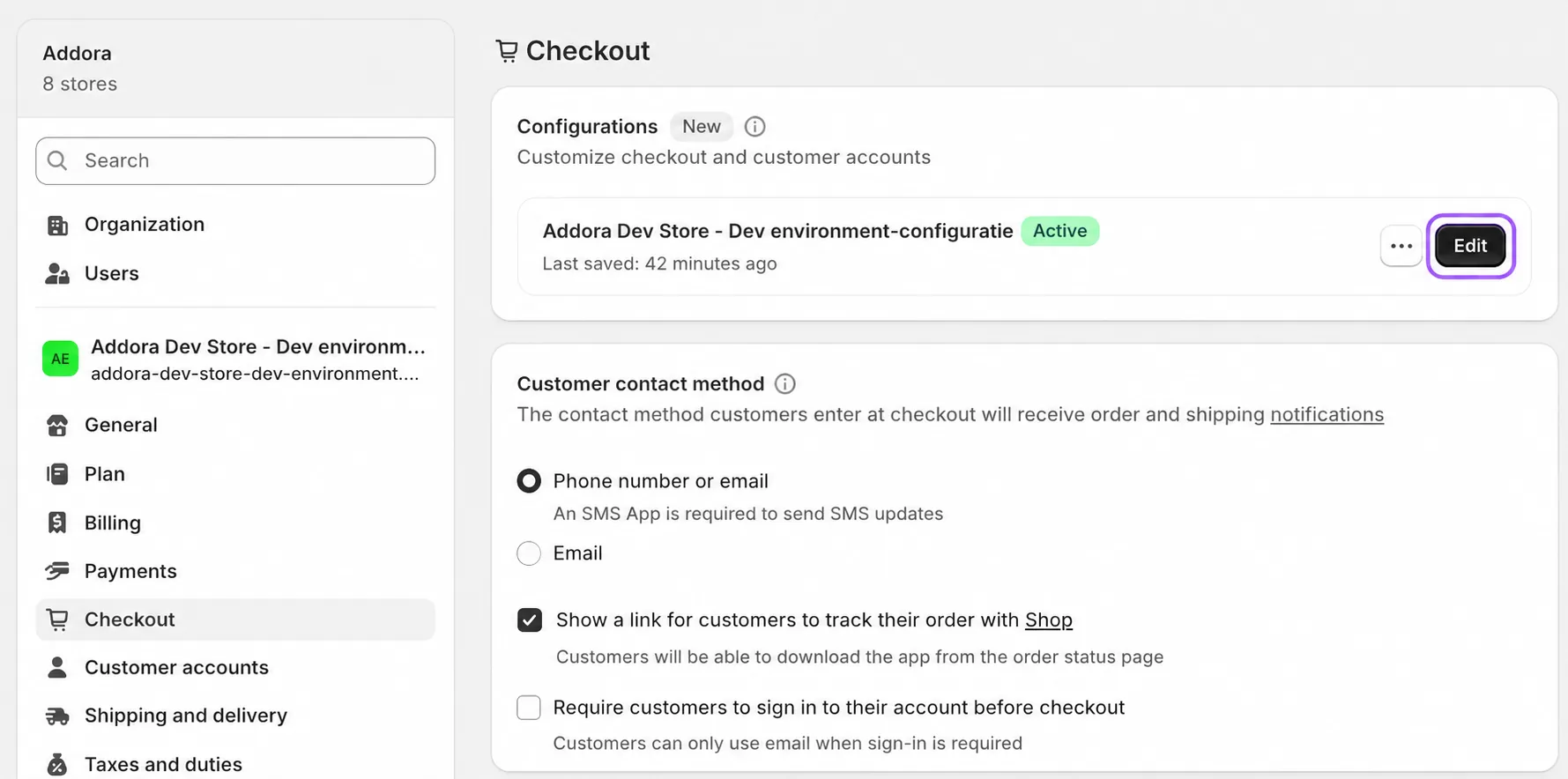
In your Shopify admin, open Settings, then Checkout, and click Edit. This opens the editor for your checkout and customer account pages.
2. Add the held orders page
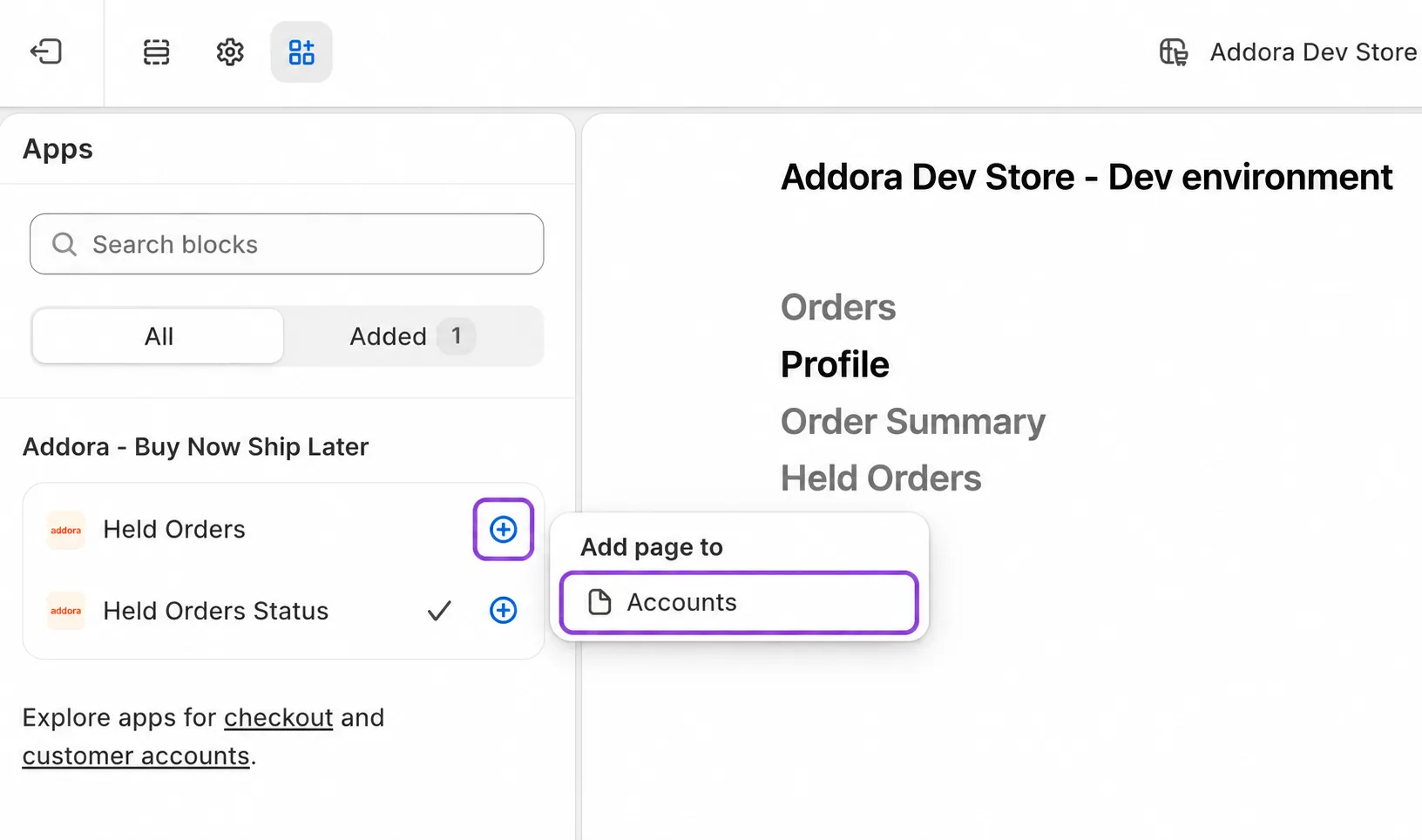
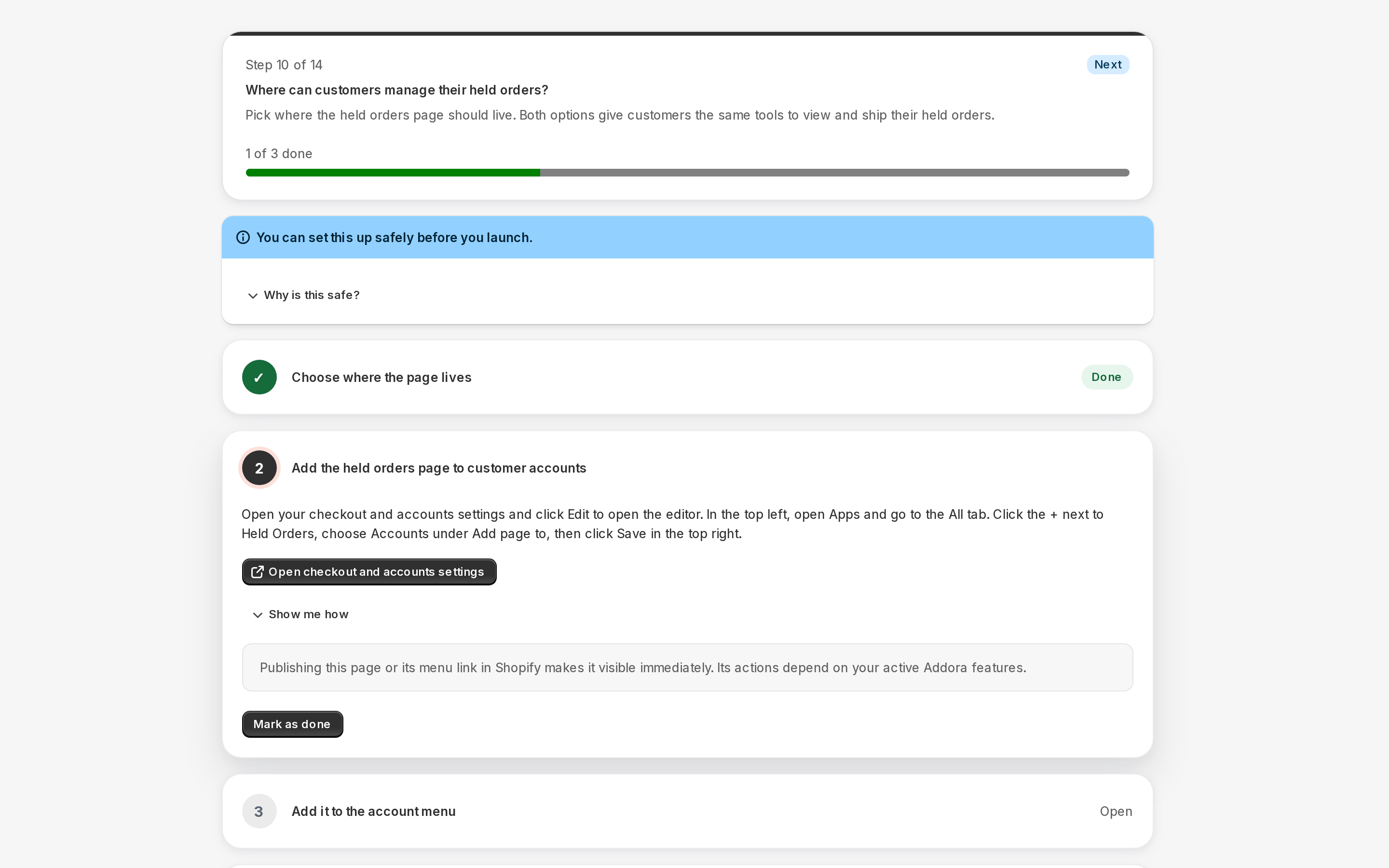
- In the top left of the editor, open Apps and go to the All tab.
- Click the + next to Held Orders, then under Add page to choose Accounts.
- Click Save in the top right.
3. Add it to the account menu
Customers find the page through the account menu.
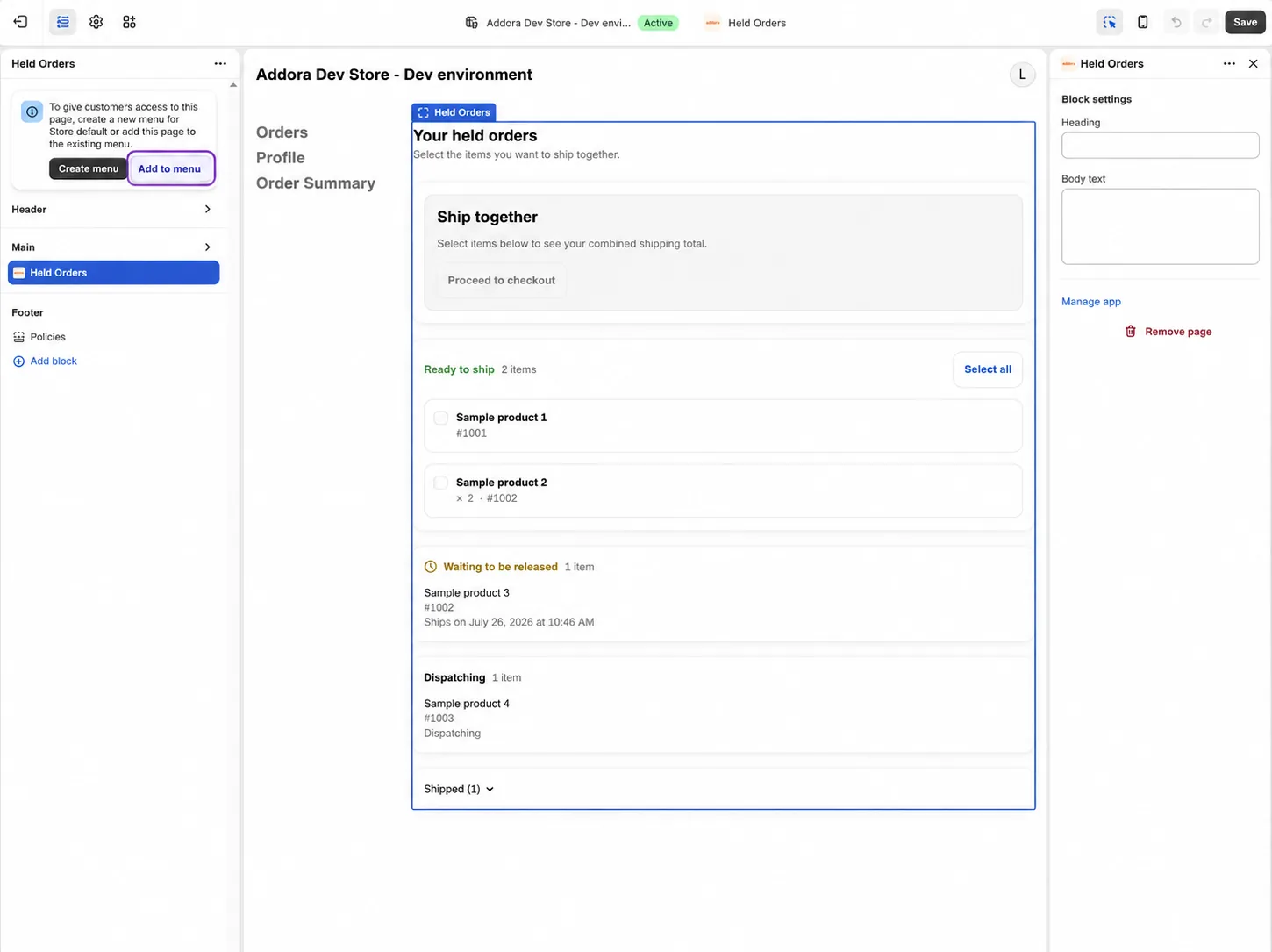
- In the top left, click Add to menu.
- Name the menu item something your customers will recognise, for example Held Orders.
- Click Save.
4. Add the order page blocks
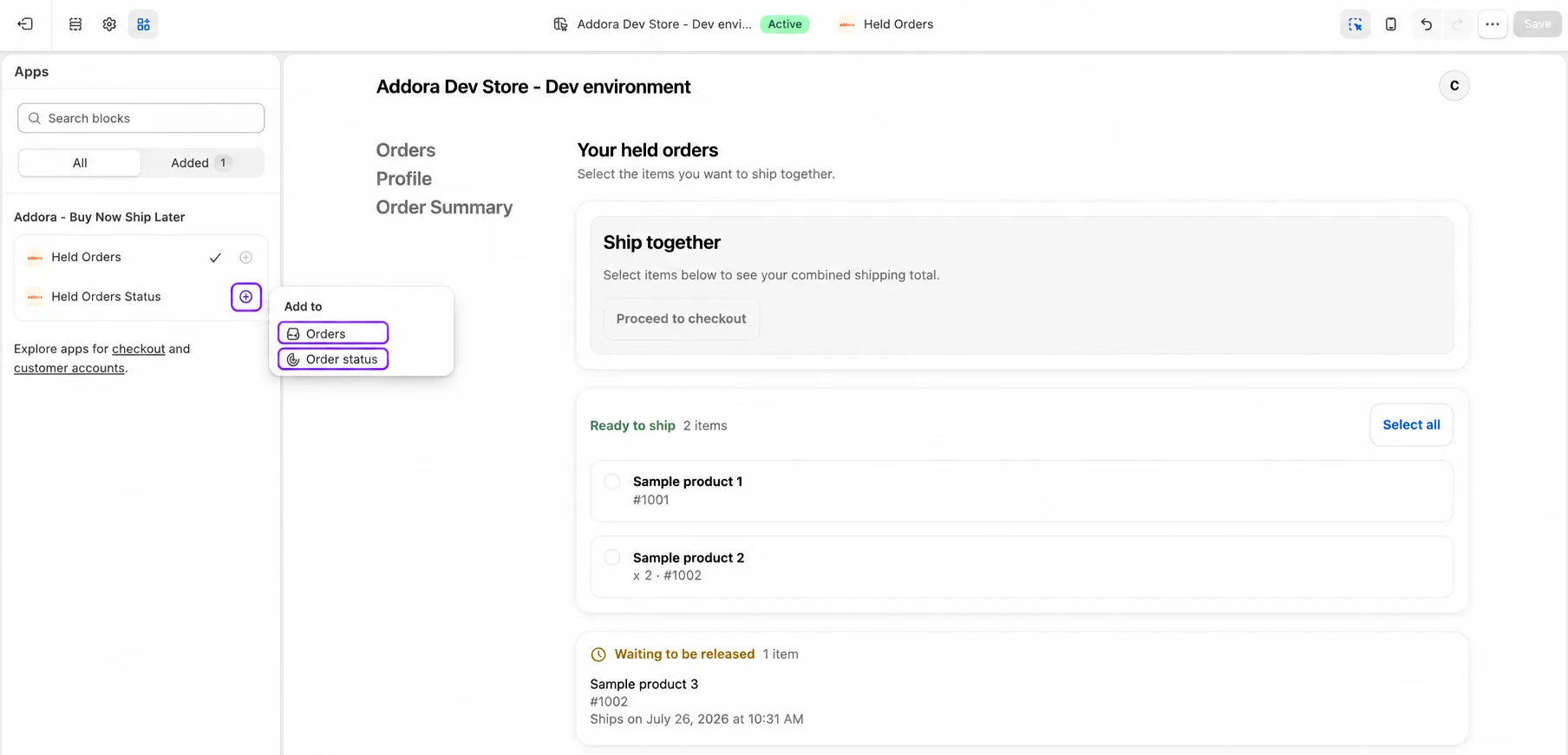
The same All tab has one more app, Held Orders Status. Click the + next to it and choose Orders for a held orders banner on the customer's order list, or Order status for a status block on each order's page. Add both if you like. Both give customers a shortcut to the held orders page.
5. Set the wording
Each Addora block has its own settings in the editor. Select a block to change its heading, its short description, the button label, and the small held badge. Keep the text short and clear, for example "Manage held orders".
6. Turn on new customer accounts
In your Shopify admin, open Settings, then Customer accounts. Set the account version to New customer accounts, and save. This is what lets the Addora pages and blocks appear in the account area for customers.
7. Test as a customer
- Place a real Ship Later test order with an email you control.
- Sign in to your store account with that same email.
- Open the account menu and confirm your new menu item opens the held orders page.
- Open your orders and confirm the Held Orders Status block appears, and that the button opens the held orders page.
- Open that same order and confirm the Held Orders Status block on the order page shows the item details correctly.
What appears on its own
A few extra touches appear on the order pages on their own, with nothing to set up:
- A short status line under each held item, showing whether it is ready to ship or still waiting, and why.
- A summary of the order's held items, grouped into ready and waiting.
- A shipping note on orders that were dispatched together as one shipment.
- A gentle note on the orders list when items are ready to ship.
For what customers can do once they reach the held orders page, see The customer order page explained.
STILL A QUESTION?
Let's work through it together.
Every store is a little different. We're here to help.