Links marked “in Addora” open the matching screen in your Shopify admin. Sign in and choose your store if Shopify asks.
The Ship Later · Thank you block explains what happens after a customer places a Ship Later or pre-order purchase. It includes a View your held orders button so customers can find their items and request shipping when they are ready.
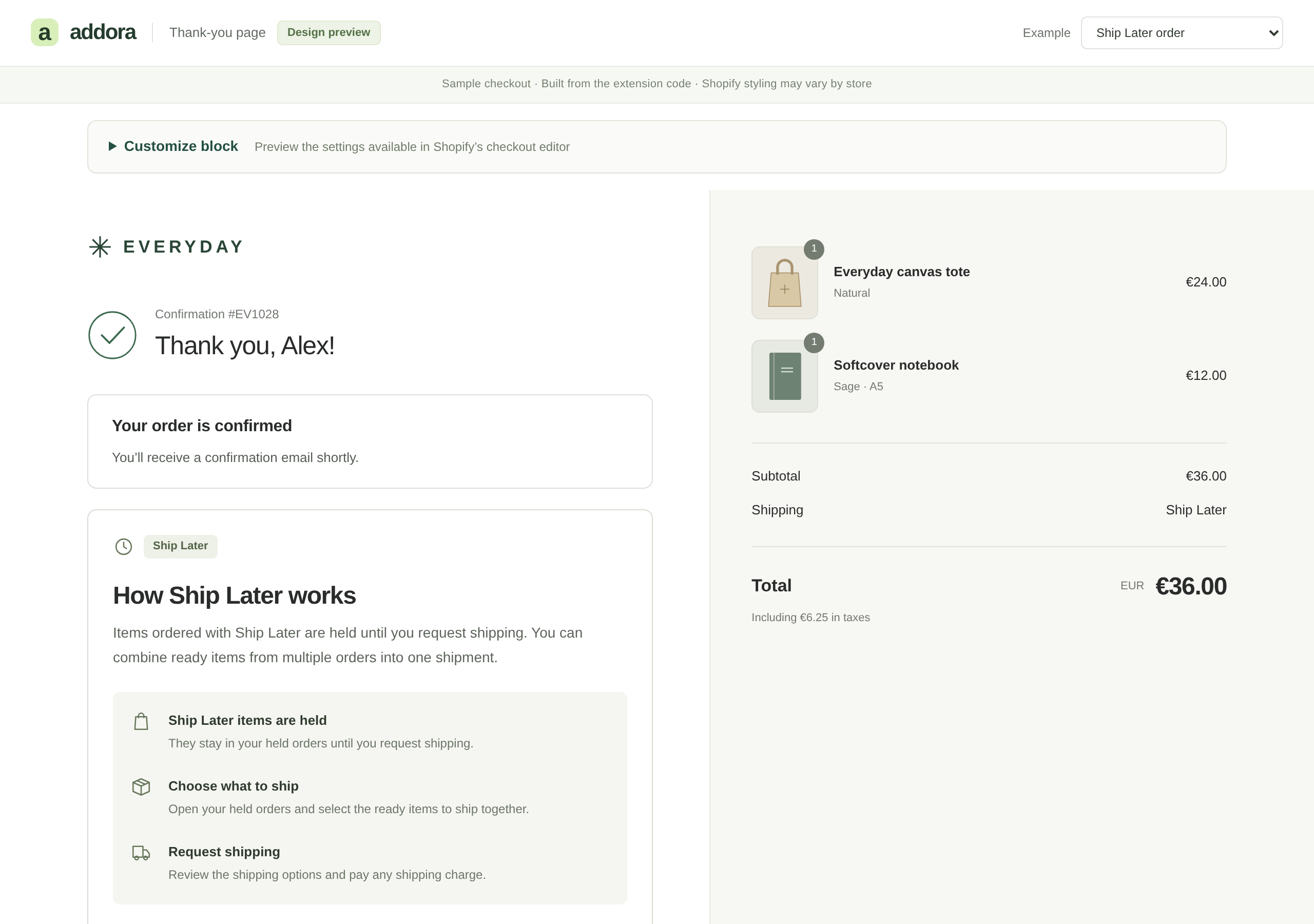
Add the block in Shopify
- In Shopify, open Settings → Checkout and click Customize for the checkout configuration you use.
- Use the page selector to open the Thank you page. Choose Add app block, then select Addora’s Ship Later · Thank you block.
- Place it near the order confirmation, then select the block to open its settings.
- Choose an Editor preview to check Ship Later, pre-orders, or both. Review the wording and click Save.
Connect View your held orders
Addora automatically links to the held-orders page detected during setup: your customer account held-orders page or storefront customer order page. Leave Held-orders page URL blank to use that page. To override it, open the actual page as a customer and paste its full https:// address.
If no held-orders page is detected, set one up in Addora or enter its URL in the block. The button stays hidden when no valid destination is available. Test it while signed in with the same email address used at checkout.
Customize the block
- Headings and explanations: separate wording for Ship Later, pre-orders, and purchases containing both.
- Three Ship Later steps: edit each title and explanation, or hide all three steps.
- Held-orders button: change the label or override the detected destination.
- Pre-order information: change the availability heading or hide the availability section.
- Mixed delivery: change the note explaining that other items follow their selected delivery method.
Leave a text field blank to keep the default wording. Your custom text is shown as entered; it is not automatically translated. These settings belong to this block in Shopify’s checkout editor, rather than the general Addora settings page.
Fonts, colors and button styling follow your Shopify checkout branding. The block uses a fixed layout with Shopify components; it does not accept custom CSS, HTML or images. Status badges, date labels and the availability disclaimer use the built-in wording.
Change colors and fonts
Open the branding settings in Shopify’s checkout editor to change your checkout colors and typography. The block’s native button, text, backgrounds and borders follow that branding. There are no separate color pickers in this app block. The local Addora design preview uses sample branding; check your own store in Shopify before saving.
What changes automatically
- Ship Later purchase: explains that items are held, then how to choose ready items and request shipping.
- Pre-order purchase: explains availability and shows expected dates from your Addora pre-order setup. Missing, passed or no longer confirmed dates show Date to be confirmed.
- Both: shows the combined explanation, availability and Ship Later steps.
- Other purchases: ordinary orders and subscriptions without an eligible Addora selection, shipping-payment checkouts and Add-on checkouts do not show the block.
Check before you publish
- Complete a Ship Later test checkout and check the explanation and held-orders button.
- Test a pre-order with an expected date and one without a date. Check a purchase containing both Ship Later and pre-order items too.
- Complete an ordinary checkout and confirm the block is hidden. Preview the layout on mobile as well.
STILL A QUESTION?
Let's work through it together.
Every store is a little different. We're here to help.