Keep Addora open beside this guide.
Links marked “in Addora” open the matching screen in your Shopify admin. Sign in and choose your store if Shopify asks.
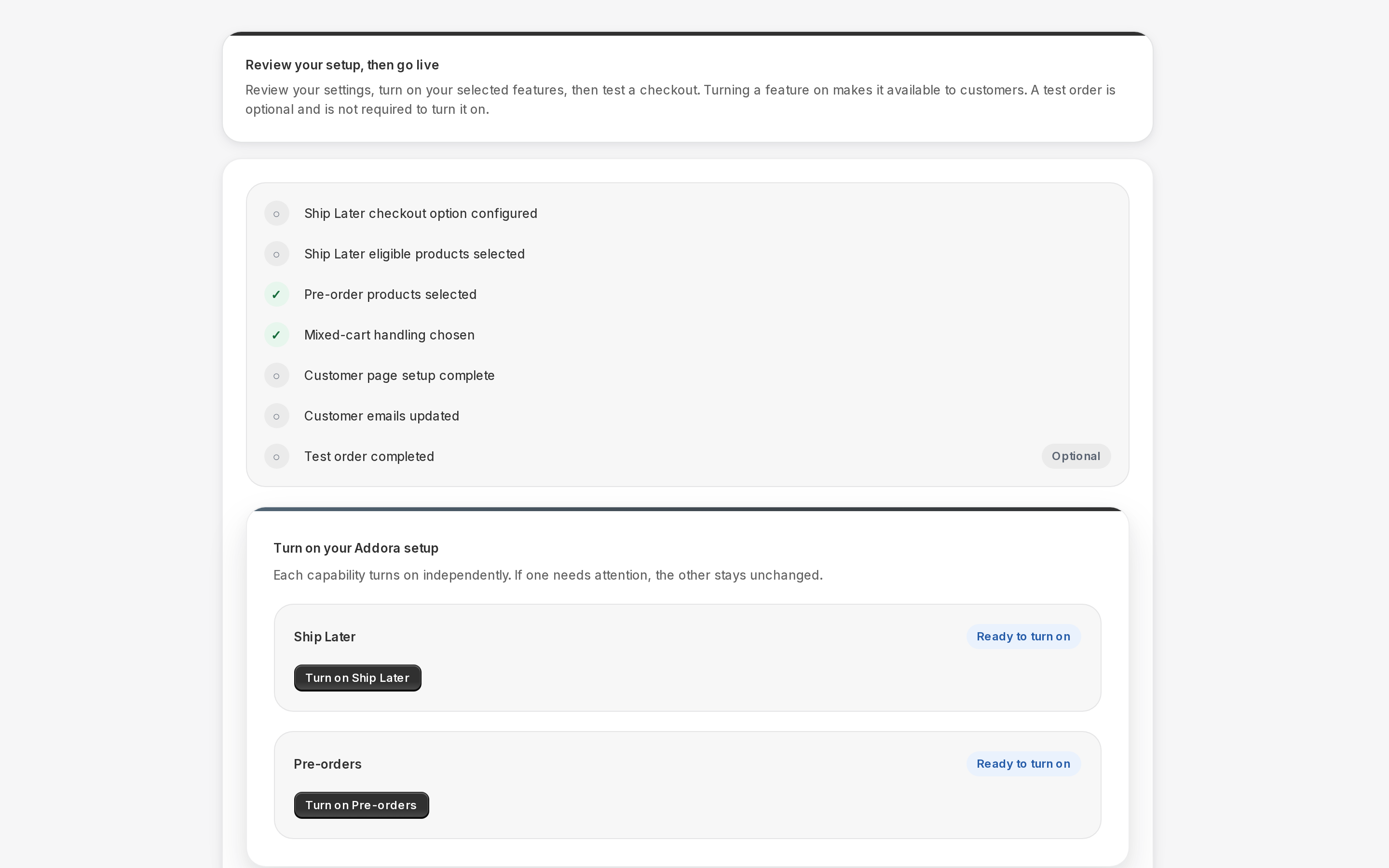
Open Diagnostics in Addora ↗Activate the selected features in Setup before placing real test orders. A saved draft is not live. Use the selected setup path, not a fixed five-step checklist. Test normal shipping and Ship Later, then every enabled preorder path.
PRODUCT WALKTHROUGH Example interface
What you need before testing
- The selected configuration is applied, its connections are verified and the required features are activated.
- A test customer account on your store (use a personal email or a staff account separate from your Shopify admin login).
- A product and destination covered by your verified delivery configuration, whether your store uses markets or legacy profiles.
Test 1: place a normal order
- Open your storefront in a browser where you are logged in as a test customer (not as a Shopify admin).
- Add a product to your cart and go to checkout.
- Confirm that your normal shipping rates still appear and that there is no Ship Later option missing or broken.
- Complete the checkout with a test payment. Use Shopify's Bogus Gateway or a real card in test mode.
- In your Shopify admin, confirm the order appeared normally and moved to fulfillment as expected.
Test 2: place a Ship Later order
- On your storefront, add a product to your cart and go to checkout.
- At shipping, select Ship Later using the checkout name saved in your current setup. Also test the ordinary shipping alternative.
- Complete the checkout. You should pay for the item but not for shipping.
- In your Shopify admin, find the order. It should show a fulfillment hold and its Addora status should say Shipping Pending.
- Open your Addora dashboard at Operations, Orders (in Addora ↗). The order should appear there with a Shipping Pending badge.
- As the test customer, go to the Order Summary page you added to your theme. The held order should appear there.
- Select the held order and go through the ship-now flow. You should reach a checkout that charges shipping only.
- Complete that checkout. Confirm the order moves to Dispatching in your dashboard, and a shipping order appears for your team to fulfill.
What to verify
- The Ship Later option appears at checkout for the right products.
- The order is held after purchase and appears in your Addora dashboard.
- The customer can see the held order on the Order Summary page.
- The combined checkout charges shipping correctly.
- After paying shipping, the order status updates in both Shopify and Addora.
- Your order-confirmation email wording makes sense for a held order.
Also test an enabled pre-order with an expected date, one without a confirmed date, and a mixed cart. Confirm the allowed shipping/cart behavior, waiting and ready quantities, final delivery charge and the correct physical shipment record. A payment record is not proof that a parcel shipped.
STILL A QUESTION?
Let's work through it together.
Every store is a little different. We're here to help.