
Some stores install Addora because they want customers to buy in-stock products now and hold them for a later shipment. Other stores come to us for a different reason: they sell products before those products are ready.
Until now, the app told the first story much more clearly than the second.
The pre-order tools were there. Addora could recognise pre-order products, hold them safely, release them on the right date, and let ready items leave first. But getting there still meant walking through a setup built around Ship Later. A merchant who only wanted pre-orders had to translate every screen into their own use case.
We have rebuilt that experience from the front door onwards.
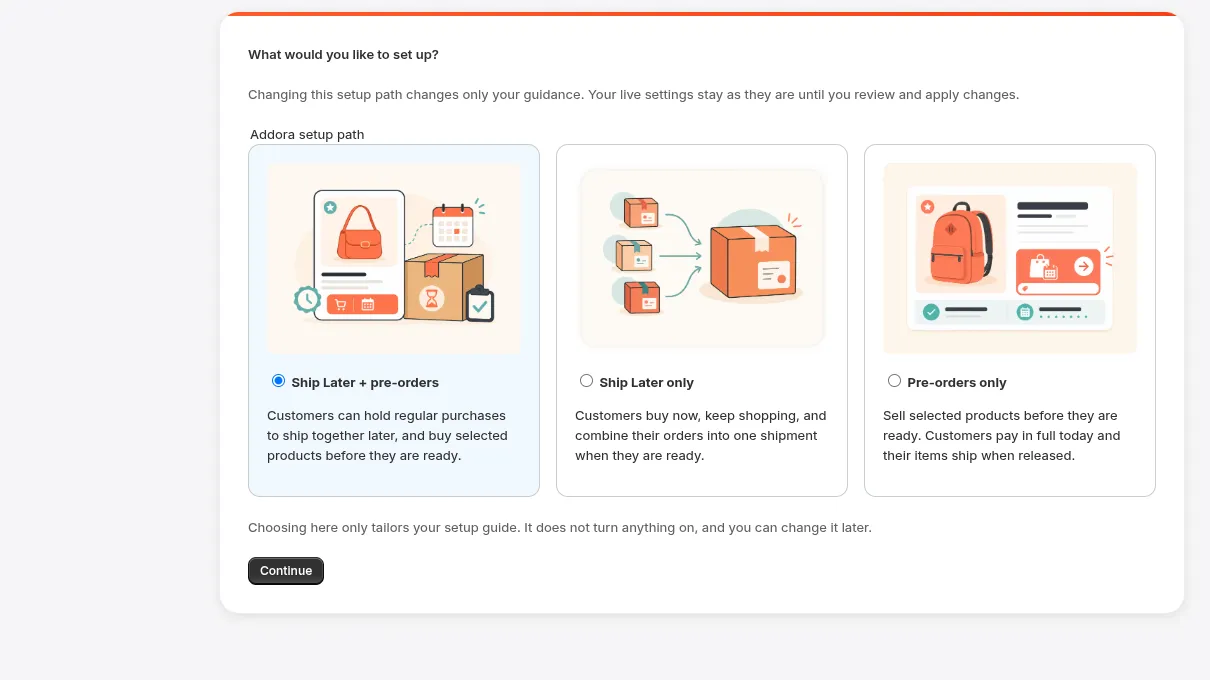
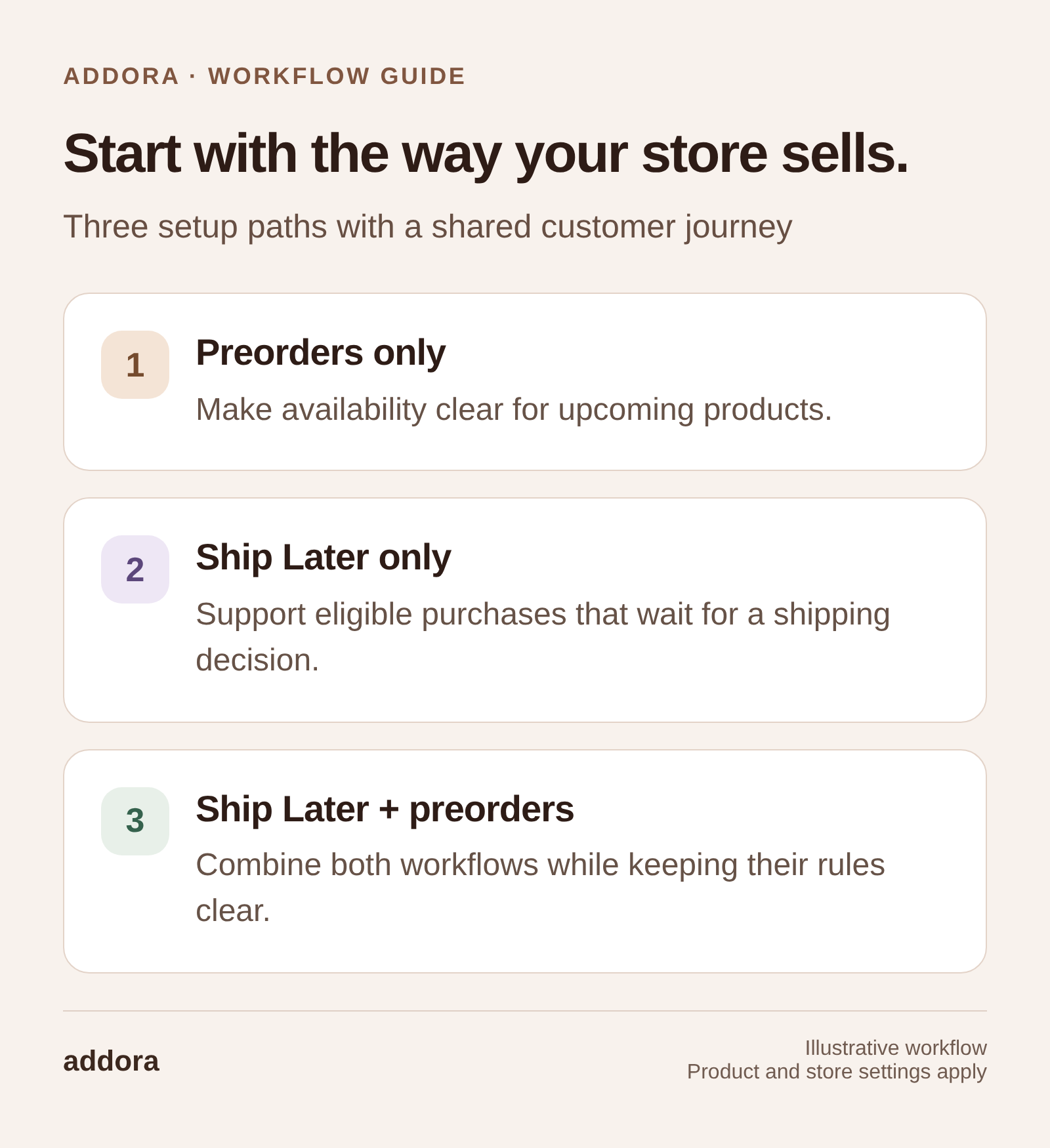
Addora now begins by asking what you want to sell: Pre-orders, Ship Later, or both. Your setup then follows the shortest path for that choice. Pre-orders have their own automatic order intake, mixed-cart rules, release settings, storefront tools, readiness checks, and launch controls. Ship Later remains just as capable, but it is no longer a prerequisite in the merchant experience.
View this workflow at full size
The feature was not the hard part
We introduced the foundations for Shopify pre-orders in May. A merchant could mark products as pre-orders, give them expected release dates, and use split fulfillment so in-stock items did not have to wait for the pre-order part of a purchase.
That solved the operational problem. It did not yet solve the product experience.
Selling a pre-order touches nearly every part of a store:
- The product page must tell the customer what they are buying.
- Checkout must keep the intended shipping choices available.
- Fulfillment must prevent the pre-order item from leaving too soon.
- A mixed order needs a clear rule for the items that are already in stock.
- The customer needs to understand when an item is expected to be ready.
- The merchant needs one place to see whether the whole flow is actually working.
Putting each control somewhere in Settings is not enough. The pieces have to tell one story and agree with each other.
That is what this update changes.
Start with the way your store sells
The first question in Addora setup is now a useful one: What would you like to set up?
There are three paths.
Pre-orders only
Sell selected products before they are ready. Customers pay in full when they order, and Addora holds the pre-order items until you release them. They do not have to choose a special Ship Later option at checkout for Addora to recognise the order.
Ship Later only
Let customers buy ready products now, keep shopping, and combine their purchases into one shipment when they are ready. This is the familiar Addora flow, now presented without unrelated pre-order steps.
Ship Later + pre-orders
Run both experiences together. Customers can choose to hold ordinary purchases, while Addora also recognises selected pre-order products automatically. Each capability has its own status and can be turned on independently.
Once you choose, Addora builds the setup around that path. A pre-order-only store does not have to answer questions that only apply to offering Ship Later on every cart. A Ship Later-only store does not have to configure product classification or release dates. A store using both gets one joined-up journey instead of two competing setup wizards.
Nothing turns on just because you choose a path. You can work through the steps, review the effect of your choices, and apply them when you are ready. Customer-facing features still have their own launch controls.
Pre-orders can enter Addora automatically
The biggest operational improvement is automatic pre-order intake.
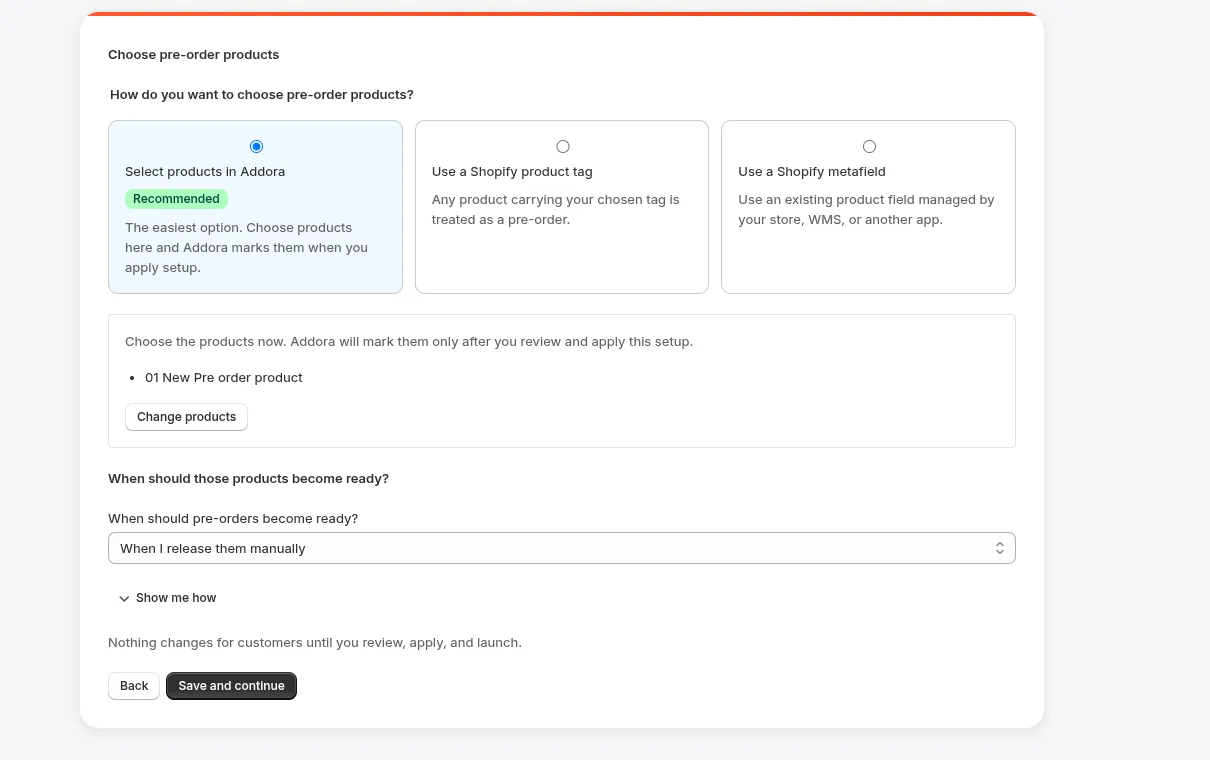
You choose how Addora should recognise pre-order products. You can select products directly, use a Shopify product tag, or point Addora at a product or variant metafield your store already maintains. When a new order contains one of those products, Addora recognises the pre-order without asking the customer to select Ship Later.
That means a shopper can use the normal delivery method that makes sense for their order. Addora still sees the pre-order content and applies the workflow you configured.
An ordinary order with no pre-order products remains an ordinary order. Addora only steps in when the product classification says it should.
Ready items no longer need to wait by accident
Mixed carts are where pre-orders become complicated. A customer may buy an in-stock item and a pre-order product in the same checkout. The right result depends on how your store fulfills orders, so Addora now makes that choice explicit.
You can ship ready items first. Addora separates the fulfillment work, leaves the in-stock part ready to dispatch, and holds only the pre-order items until they are released.
Or you can require separate carts. Checkout asks the customer to place ready and pre-order products in different orders. You can customise the message they see and allow sensible exceptions such as gift cards, donations, or shipping protection.
This is more than a checkout preference. The choice keeps the promise on the product page aligned with what your warehouse will actually see after the order is placed.
A safer Pre-order experience on product pages
A pre-order should look like a pre-order before the customer pays.
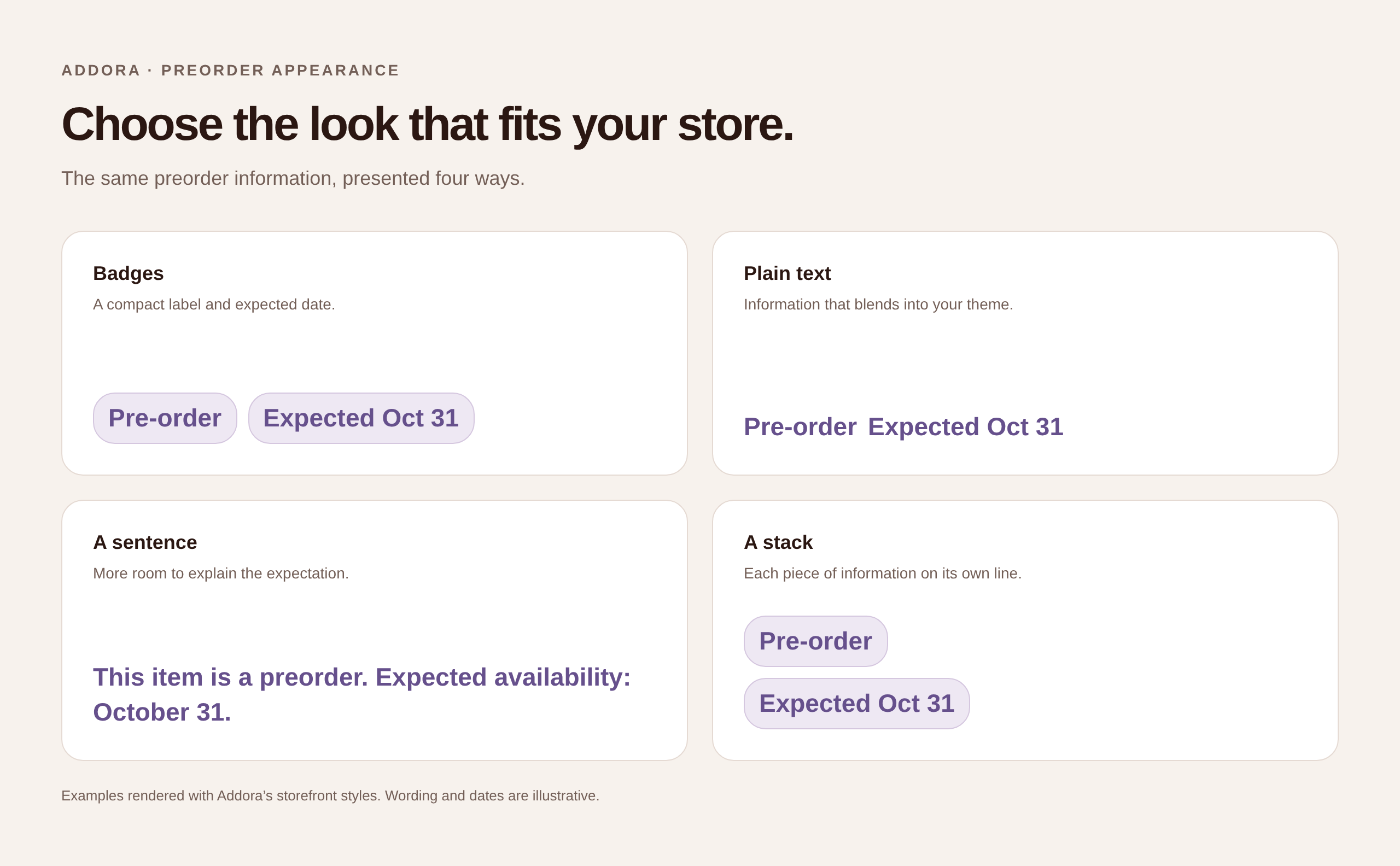
The new Addora storefront block can show three important pieces of information next to the product form:
- The selected item is a Pre-order.
- The date it is expected to be ready, or a clear message when the date is still to be announced.
- A reminder that the customer pays now and the item ships after it becomes ready.
The ready date is deliberately described as an expectation, not a delivery promise. It tells the customer when the product is expected to become available. The delivery date still depends on when the item is released, the shipping method used, and the rest of the fulfillment journey.
On compatible themes, Addora can also relabel the theme's own purchase button to Pre-order. It does not replace your product form. It works with the native form already used by your theme and updates the message when a shopper changes variants.
That last part matters. Shopify themes, custom product forms, cart drawers, and accelerated checkout buttons can behave very differently. Addora therefore checks the real published theme instead of assuming a theme name is enough.
If Addora can verify safe control, it shows that the Pre-order button is ready. If a product template is only partly compatible, the app tells you which experience needs testing. If safe button control cannot be verified, Addora falls back to information-only mode: the pre-order badge, ready timing, and payment note still appear, but the native buy button is left unchanged.
We would rather show a clear limitation than make a storefront promise we cannot safely keep.

For the current setup steps, follow the native preorder guide. The newer preorder and email styling guide covers the appearance controls that help keep product-page information and customer messages consistent.
View the preorder appearance examples at full size
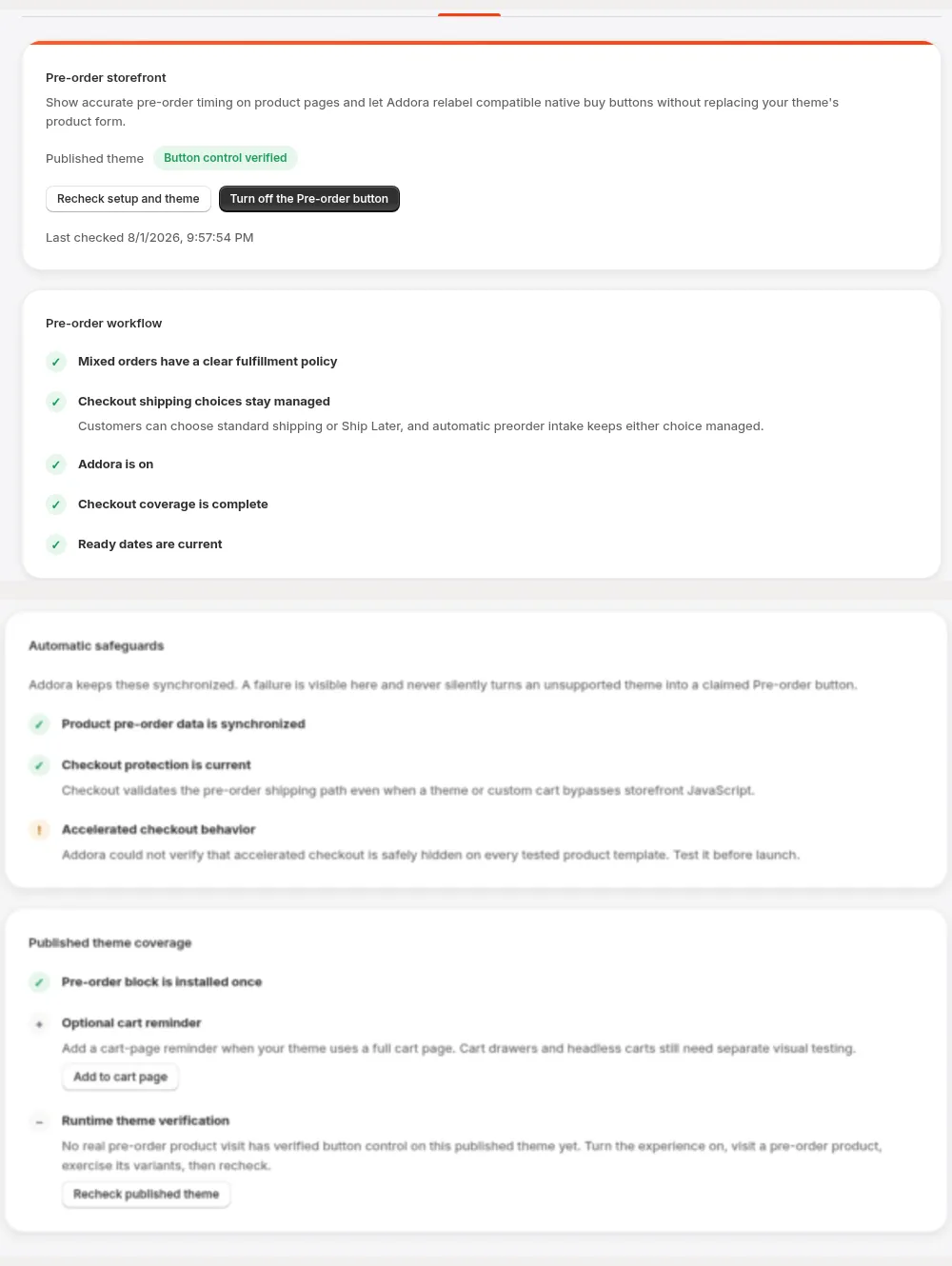
One checklist for the whole storefront flow
The new Pre-orders → Storefront area brings the moving pieces together. It checks whether:
- mixed orders have a clear fulfillment policy;
- checkout is using the shipping choices you intended;
- Addora and the Pre-orders capability are live;
- the required checkout coverage is available;
- product pre-order data has finished synchronising;
- checkout protection is current;
- the product-page block is installed once; and
- the published theme has proved what it can safely control.
Each problem links back to the setting that owns it. You do not have to remember whether a blocker belongs under products, fulfillment, delivery profiles, or the theme editor.
There is also an optional cart reminder for themes that use a full cart page. Cart drawers, headless storefronts, and heavily customised purchase flows still need their own visual test, and Addora says so plainly.
Release pre-orders in the way that fits your catalog
Recognising a pre-order is only half of the job. Addora also needs to know when it is ready.
For release-dated products, you can use a date stored on the product. Addora keeps the item held until that date and avoids showing an old date as a current promise when timing needs to be updated.
You can also release an item manually from Operations. Stores that depend on a supplier or warehouse can use the more advanced confirmation options already available in Addora.
However the item becomes ready, the rest of the Addora experience stays connected. The hold is released, the customer-facing status updates, and enabled order-update emails can tell the customer that the item is available to add to a shipment. Becoming ready does not mean it has already shipped. The customer still chooses when to send held purchases through the normal Addora flow.
Shipping credit is now an explicit merchant choice
When an in-stock item and a pre-order item share a checkout, the customer may pay shipping before the pre-order is ready. Later, the pre-order may need its own Addora shipment.
There is no single policy that suits every store, so Addora now asks you to choose how shipping credit should work for new automatically managed pre-orders:
- Protect the ready-item shipment first, then use any remaining checkout shipping as credit toward the later pre-order shipment.
- Credit the pre-order shipping cost, capped by the checkout shipping still retained.
- Do not offer shipping credit, so the later Addora shipping charge is paid in full.
Existing orders keep the policy they already received. Most importantly, this credit is a discount against the later shipping request. It is not a refund of the shipping charged at the original Shopify checkout.
The app itself grew up too
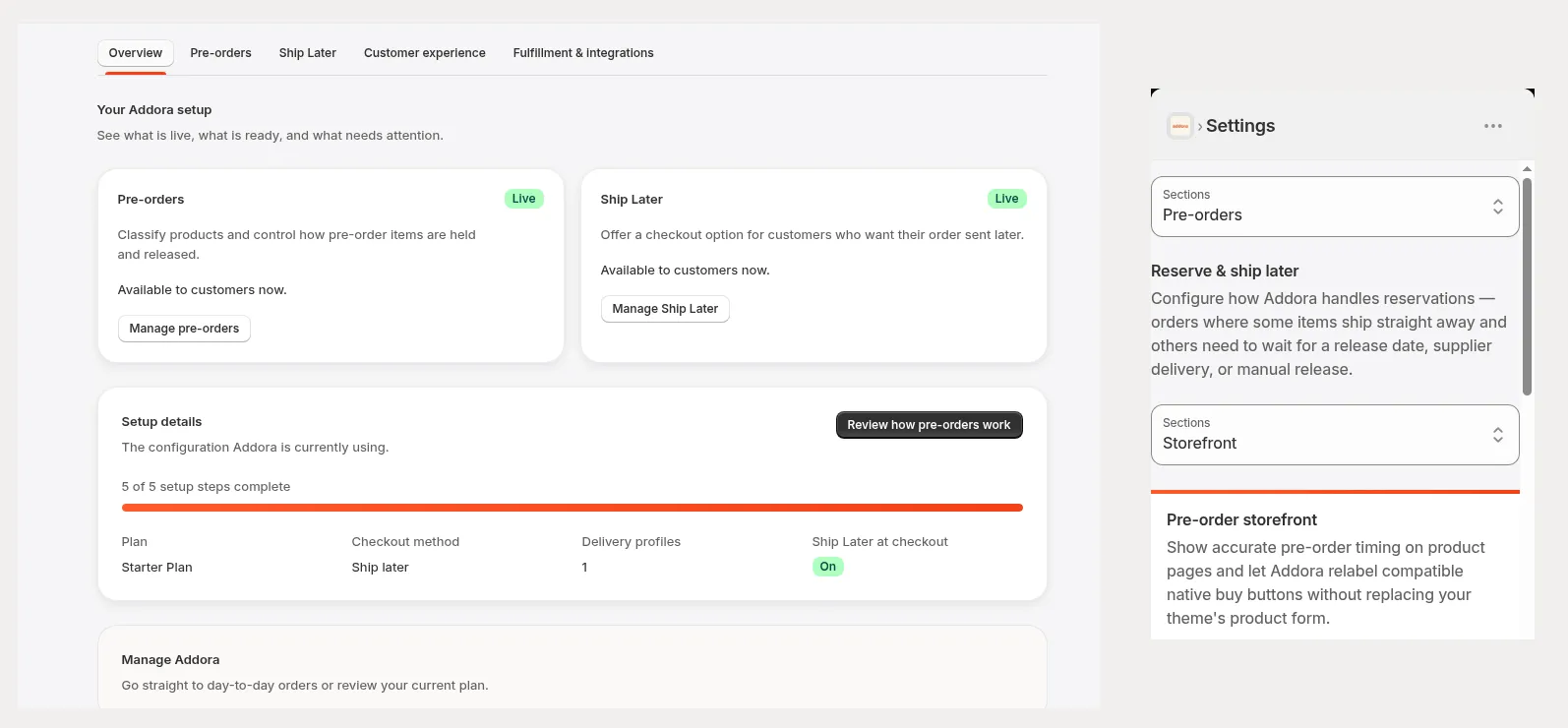
We did not want to put a clearer onboarding flow inside an admin that still felt difficult to navigate, so the same release includes a broad redesign of the merchant experience.
Settings now starts with a simple overview of Pre-orders and Ship Later. Each has an honest status such as Live, Ready, or Needs attention, followed by the exact next action. The controls underneath are grouped by the job they perform rather than by Addora's internal terminology.
The app also behaves much better on smaller screens. Navigation becomes compact selectors, product rows become readable cards, forms stack cleanly, wide content stays contained, and the support button moves when it would cover an action. The page stays within the width of the phone instead of forcing the entire admin sideways.
Accessibility received the same attention. Choice groups have real labels, status never relies on colour alone, loading and saving states are announced more clearly, keyboard focus moves to errors when something needs fixing, and reduced-motion preferences are respected.
The result is not just a new coat of paint. It should take less effort to understand where you are, what Addora is doing, and what you need to do next.
One useful workflow extra
If your warehouse, 3PL, exports, or connected apps read Shopify order notes, Addora can now append your own instruction to new Addora orders automatically.
The setting applies to new orders classified through Ship Later or automatic pre-order intake. It leaves ordinary orders alone and appends to an existing customer or staff note instead of replacing it. A note such as "Hold for Addora. Do not dispatch yet" can give another system or a warehouse operator a helpful signal without another manual step.
Existing stores stay in control
This release does not silently move existing merchants onto a different fulfillment workflow.
If Addora is already live on your store, choosing another setup path first changes the guidance you see. You can review the proposed change and its effect before applying it. Existing live capabilities and held orders are preserved unless you deliberately change the setting that controls them.
The same principle applies throughout the new pre-order experience. Addora checks, explains, and recommends. You decide when customer-facing behavior changes.
Try the new pre-order setup
To explore the new flow:
- Open Addora in your Shopify admin and go to Onboarding.
- Choose Pre-orders only, Ship Later only, or Ship Later + pre-orders.
- Follow the steps that apply to your path, including product recognition, release timing, and mixed-order handling.
- Review the exact changes before you apply them.
- Turn on each capability when its readiness checks are complete.
- If you sell pre-orders, continue to Pre-orders → Storefront, add the product-page block, and test a real pre-order product on your published theme.
You can leave and return while product checks run in the background. Addora keeps the last completed product classification active while a refresh finishes, so you always have a clear view of what is live now and what is still being prepared.
Already using Addora? Open up the app inside your adminand take a look at the new setup!
New to Addora? Install Addora from the Shopify App Store to run Shopify pre-orders, Ship Later, or both from one place.
If you would like us to review your current pre-order workflow before you change anything, message us in the in-app chat or email [email protected]. We are happy to go through it with you.


