Links marked “in Addora” open the matching screen in your Shopify admin. Sign in and choose your store if Shopify asks.
Open Operations, Orders in Addora ↗The default Operations view shows orders you have not archived in Addora. Open Archived to find archived orders, or All orders to include both.
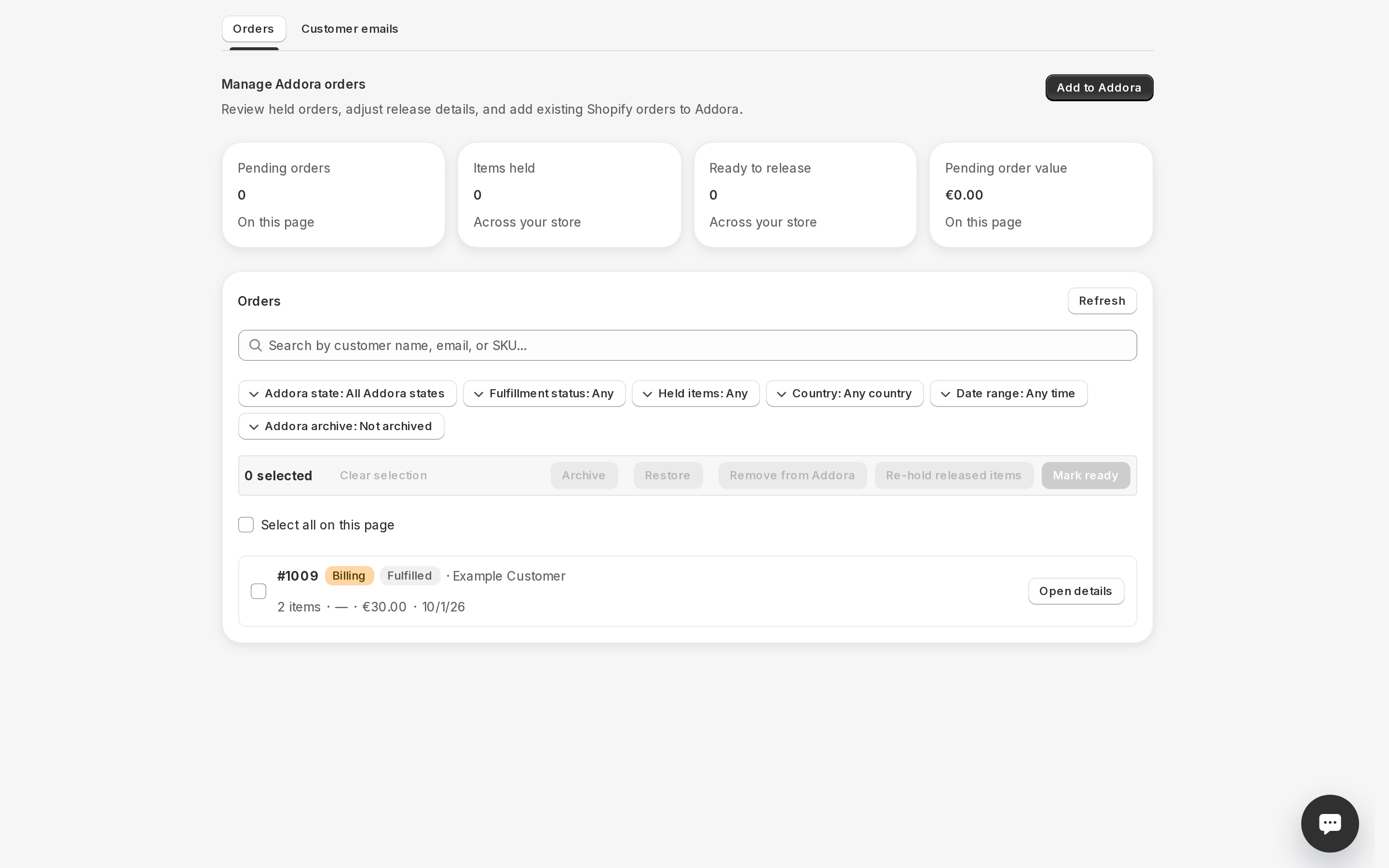
Summary tiles
Pending orders and Pending order value summarise the current page. Items held and Ready to release show totals across your store. Archiving does not change these store-wide workload totals.
The order list
Below the filter bar, each row in the list represents one order. Every row shows the order number, a coloured state badge (amber for pending, blue for released, yellow for billing, green for shipped), the customer's name, a progress badge (for example "2 / 3 held"), the order total, the date it was placed, and the shipping country.
At the top of the list is a Select all on this page checkbox. Use it to select every visible order at once for a bulk action. When more orders exist than the current page, a Load more button appears at the bottom.
Opening an order
Click anywhere on an order row, or press Open details, to open the order drawer. The drawer shows every line item with its status, the buttons to act on it, the customer's other pending orders, and the full change history. See Open an order to see the details for a full walkthrough.
Refresh
The list loads automatically when you open the page or change a filter. To pick up changes made elsewhere (for example, items released automatically because a release date passed), press the Refresh button above the list.
Fulfillment filters and dates
Use Fulfillment status to find Fulfilled, Unfulfilled, Partially fulfilled, On hold or Scheduled orders. This is separate from Addora state: a combined order can be fulfilled in Shopify while its Addora state still says Billing. The Not fulfilled preset includes every status except Fulfilled.
Choose Custom dates and enter From and To to filter by order creation date. Dates use your store’s timezone and include the whole final day. You can bookmark the filtered page; filters also survive reload and browser Back.
Archive and restore completed orders
Select completed orders and choose Archive selected, or open an order and use its archive action. Confirm to hide them from the default Operations list. The action verifies fulfillment and blocks orders with remaining items, unresolved tracking or work that needs checking. It does not mark an order fulfilled.
Choose Archived under Addora archive, select orders and choose Restore selected to show them again. Undo also appears immediately after archiving. Shopify’s archive state, customer order history, payments and holds stay unchanged. This action is separate from Remove from Addora.
If an archived order changes or needs attention again, it returns to the default list. If a filtered page is empty but Load more is available, continue loading to find more matches.
STILL A QUESTION?
Let's work through it together.
Every store is a little different. We're here to help.