Links marked “in Addora” open the matching screen in your Shopify admin. Sign in and choose your store if Shopify asks.
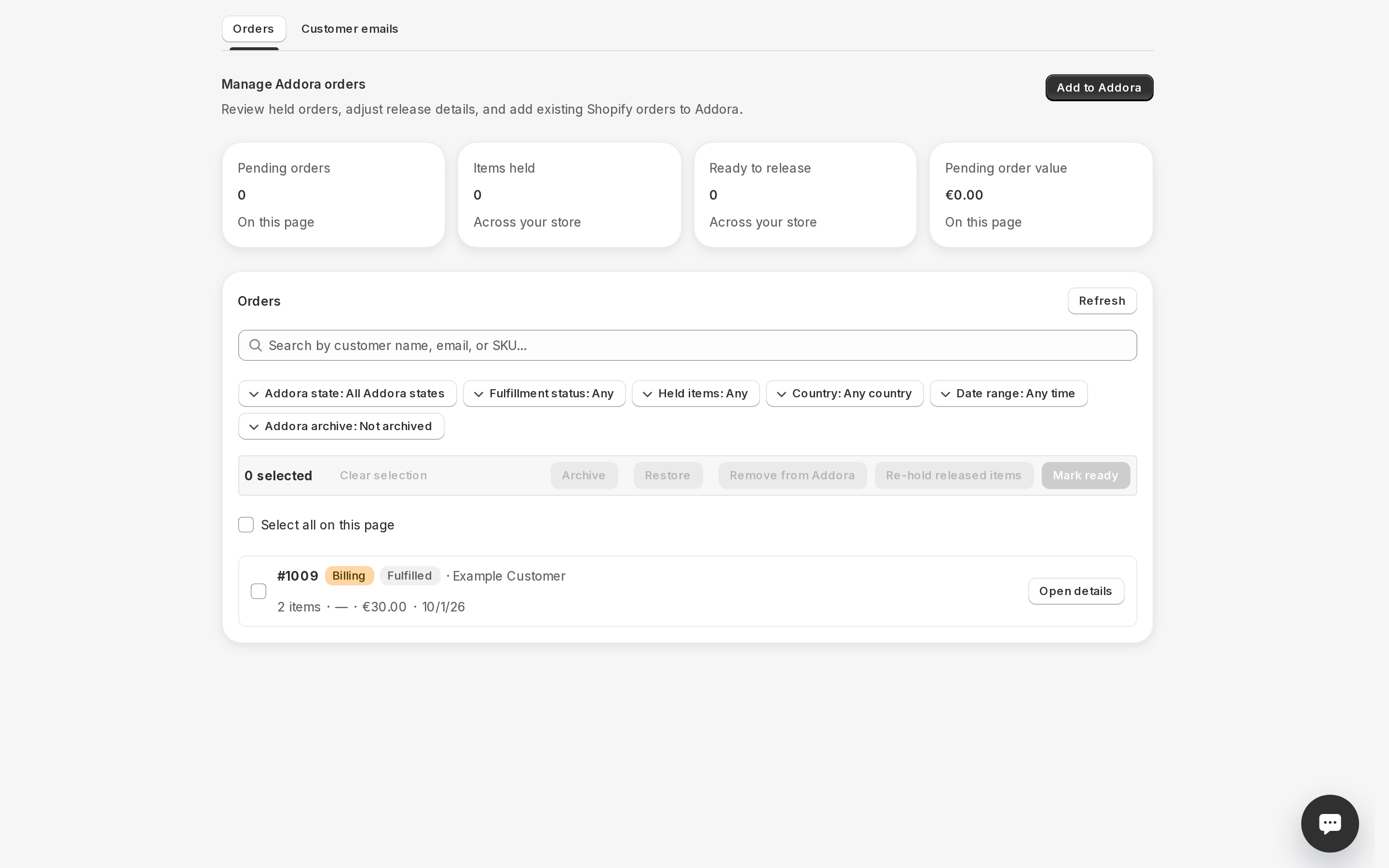
Open Operations, Orders in Addora ↗The filter bar at the top of Operations (in Addora ↗) lets you narrow the order list to exactly what you need. Filters combine, so you can, for example, show only pending orders from Canada that have held items.
Search by customer email or SKU
Type in the search box (placeholder: "Search by customer email or SKU…") to find a specific customer or product. The list updates automatically as you type. To clear the search, press the X inside the field or remove the search chip below the filter row.
Filter pills
Use filters for Addora state, fulfillment status, country, creation date (including a custom range), held items and archive visibility. Search by customer name, email or SKU. Combine the controls, then clear them to recover hidden results. Active and Archived are Addora list views, not Shopify fulfillment states.
- State: multi-select. Choose one or more of: Pending, Released, Billing, Shipped. The default shows all states. Use this to find orders that have already shipped or are in billing.
- Held items: choose Any, Has held items, or No held items. "Has held items" is useful when you want to act on orders that still need something before they can ship.
- Country: multi-select of shipping countries. Only appears when your orders span more than one country.
- Date range: Any time, Last 7 days, Last 30 days, or Last 90 days. Filters by the date the order was placed.
Active filter chips and Clear all
When any filter is active, a row of chips appears below the pills. Each chip names the active filter. Press the X on a chip to remove just that filter. Press Clear all at the end of the row to reset every filter and the search at once.
A badge showing "n filters active" also appears next to the pills as a quick reminder that the list is narrowed.
When nothing matches
If no orders match the current filters, the list shows a "No orders match these filters" message with a Clear filters button. Use it to start fresh without manually removing each filter.
Fulfillment filters and dates
Use Fulfillment status to find Fulfilled, Unfulfilled, Partially fulfilled, On hold or Scheduled orders. This is separate from Addora state: a combined order can be fulfilled in Shopify while its Addora state still says Billing. The Not fulfilled preset includes every status except Fulfilled.
Choose Custom dates and enter From and To to filter by order creation date. Dates use your store’s timezone and include the whole final day. You can bookmark the filtered page; filters also survive reload and browser Back.
Archive and restore completed orders
Select completed orders and choose Archive selected, or open an order and use its archive action. Confirm to hide them from the default Operations list. The action verifies fulfillment and blocks orders with remaining items, unresolved tracking or work that needs checking. It does not mark an order fulfilled.
Choose Archived under Addora archive, select orders and choose Restore selected to show them again. Undo also appears immediately after archiving. Shopify’s archive state, customer order history, payments and holds stay unchanged. This action is separate from Remove from Addora.
If an archived order changes or needs attention again, it returns to the default list. If a filtered page is empty but Load more is available, continue loading to find more matches.
STILL A QUESTION?
Let's work through it together.
Every store is a little different. We're here to help.