Links marked “in Addora” open the matching screen in your Shopify admin. Sign in and choose your store if Shopify asks.
Open Settings, Pre-orders in Addora ↗Help customers understand a preorder before they buy. Addora supplies three information items: Pre-order, expected availability and Sold out. You choose where they appear, how they look and what they say. The same settings work with legacy preorders and Shopify-native selling plans. The screenshots show an example store; your theme and wording can differ.
Which Addora component goes where?
- Product pages: add the Addora information app block in the product template. Choose its layout in Addora and keep the block defaults. Adding this block does not also install collection cards.
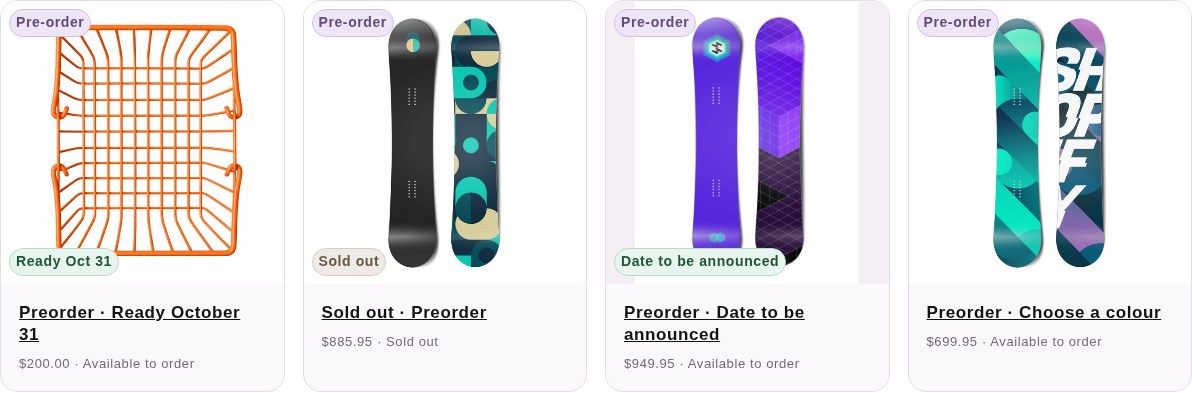
- Product cards: create the downloaded snippet, insert its short Liquid render calls in the existing card file, and turn on Addora information display under App embeds. Saving the snippet alone does not put badges on cards. The embed is an on/off switch; you do not paste any code into it. Section 7 shows all three parts.
- Existing purchase setup: Pre-order purchase surfaces is a separate app embed for the purchase flow. It does not replace the card installation or Addora information display. Keep your existing purchase setup as it is when adding badges.
1. Pick a place and its layout
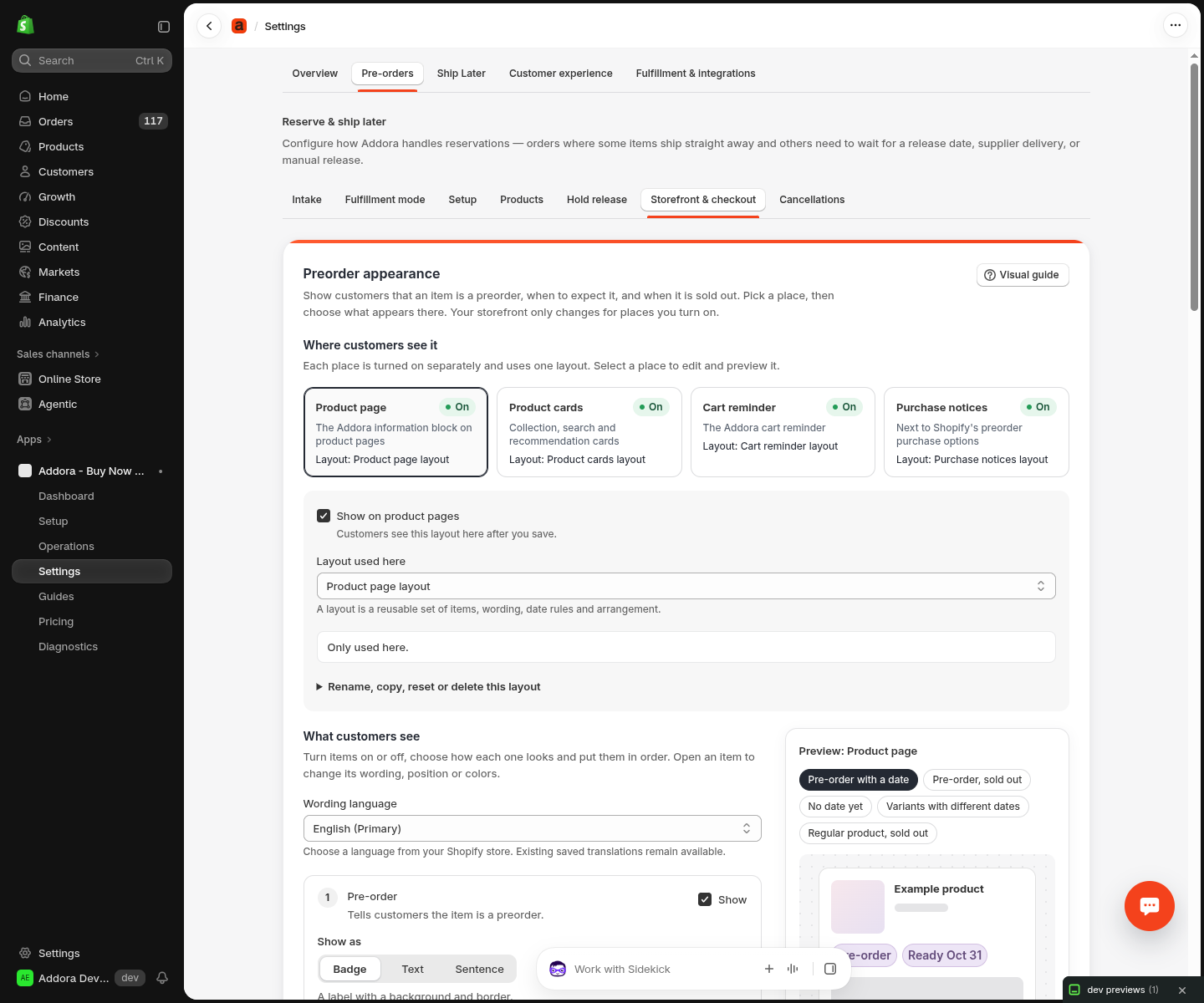
Open Settings, Pre-orders (in Addora ↗). The Preorder appearance card starts with Where customers see it: four places, each with its own On or Off status and the layout it uses. Select a place to edit and preview it. The Visual guide button at the top opens this article.
- Select Product page, Product cards, Cart reminder or Purchase notices. New places start off.
- Configure the layout first. For Product cards, leave Show on product cards off until you have added the theme code in section 7. When ready to preview, turn the matching Show on option on and save. This setting applies store-wide, including to the published theme.
- Check Layout used here. A layout is a reusable set of items, wording, date rules and arrangement. The note below it says whether another place uses the same layout; if so, your edits apply there too.
- To give this place its own version, open Rename, copy, reset or delete this layout and choose Create a copy. The copy gets a name such as “Copy of Product page layout”, which you can change. You can keep up to 12 layouts. Deleting a layout moves every place that used it to another layout.
2. Choose the items and how they look
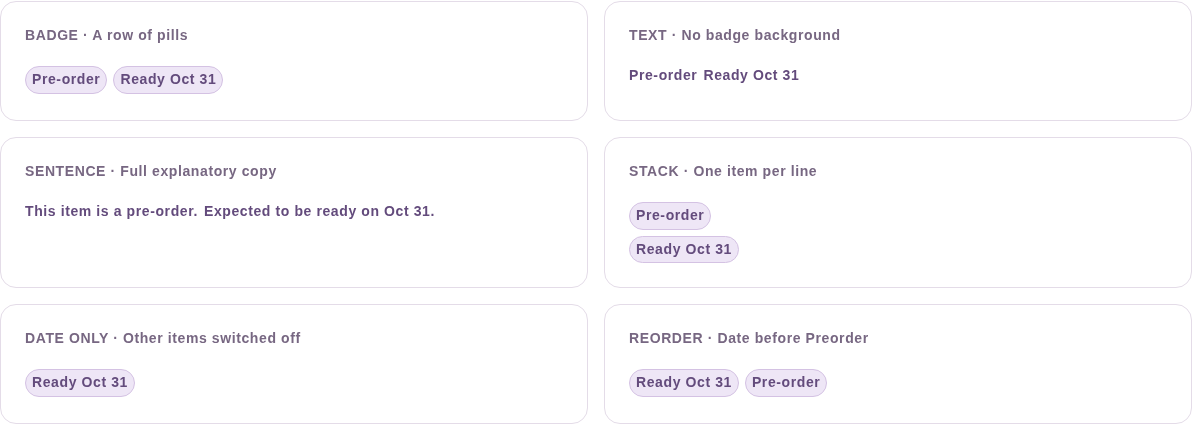
Under What customers see, each item has its own numbered card. Untick Show to hide an item, use the arrows to change the order, and pick Show as: Badge, Text or Sentence. The preview next to the editor updates as you work.
- Badge uses a background and border. Text and sentence use the text color without a badge background; sentence has fuller default wording.
- Under Look and feel, Arrangement sets Row (items next to each other) or Stack (one item per line). Shared size and shape holds text size, font weight, corner radius, padding and the space between items.
- Use the example situations above the preview, such as Pre-order, sold out or No date yet, to check every case. When you open an item, the preview outlines it with a dashed line.
Make small and large cards look balanced. Select Product cards, then turn on Adapt to card width under Look and feel. Choose Text size on small cards and Text size on large cards; 10px and 16px are a useful starting point. Compact spacing on small cards reduces padding and gaps. Sizing follows the image area, so a narrow desktop carousel uses the compact treatment too. Other places keep their fixed styles.
For mobile cards, keep Date format on Short and open the expected-date item. Narrow-card wording starts with {date}, so “Ready Nov 30” becomes “Nov 30” on image areas up to 150px wide; wider cards keep the full wording. You can change this text per language, keeping {date} exactly once. An empty field uses the regular wording or a saved English narrow-card translation.
Use Hide on narrow cards only for items you want to leave out there, such as a secondary Pre-order badge when the date already explains the preorder. Items remain visible on wider cards and other places. Nothing is hidden automatically. Check both previews and the sold-out situation before saving.
Existing image badges need no new snippet. For below-image, title or inline items, add data-addora-card-position to the existing image-area container from section 7 so Addora can measure it. Keep Addora information display enabled. Without a marked image area or JavaScript, cards keep their fixed appearance.

3. Set colors and see what is inherited
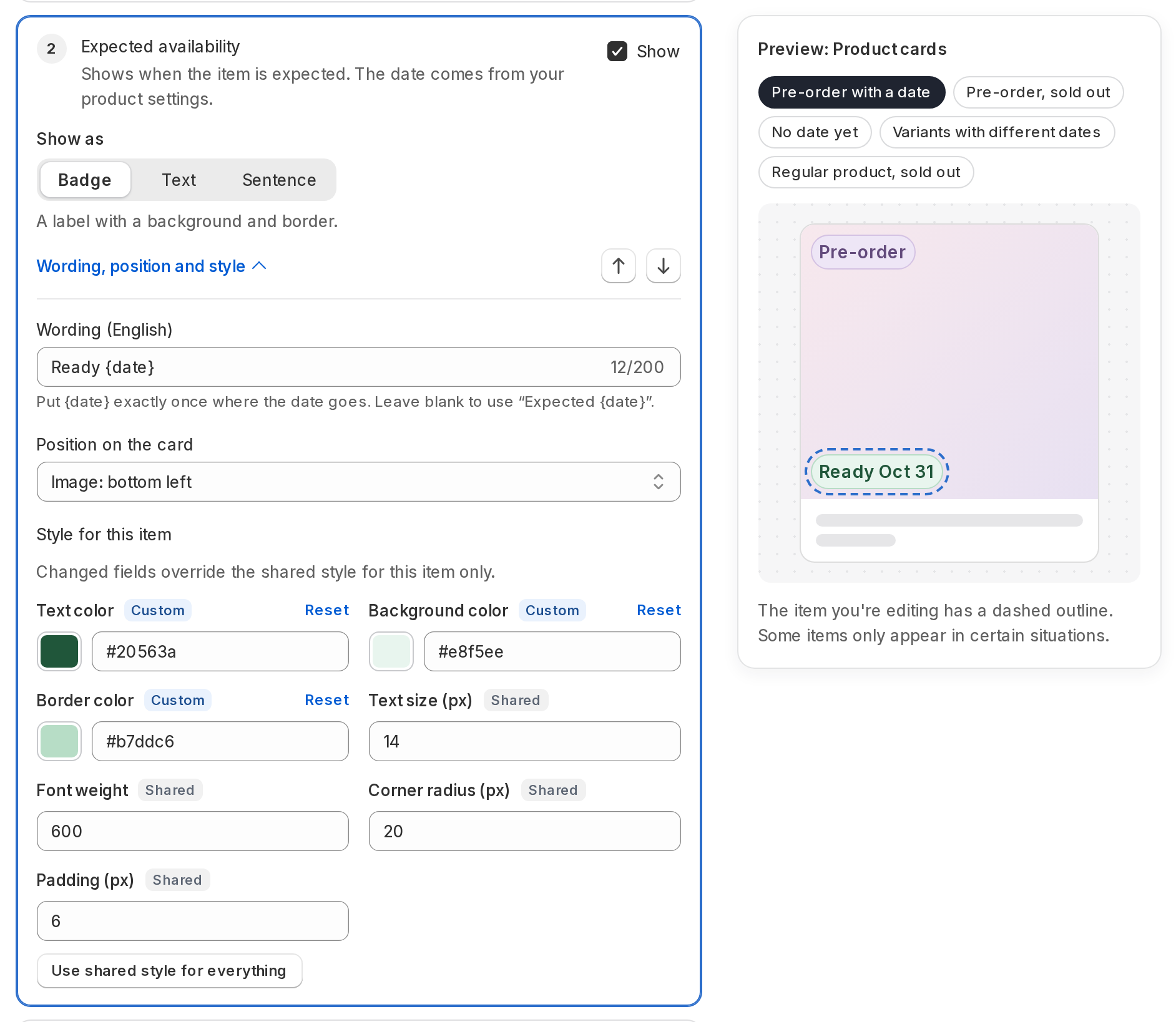
Under Look and feel, Shared colors sets the text, background and border colors that every layout and item uses. Click a swatch to pick a color, or type a six-digit hex code such as #634b7c. Addora starts with dark purple text (#27212e), a pale purple background (#eee8f3) and a purple border (#d5c7df); it does not copy your theme colors.
- To give one item its own colors, open the item, choose Wording and style, then Give this item its own style. Fields you change show a Custom tag; untouched fields show Shared and keep following the shared colors.
- Reset next to a Custom field returns that one field to the shared value. Use shared style for everything removes all of the item's own styles.
- An item's own style takes priority over the layout, which takes priority over the shared colors. Text and sentence items only use the text color.
- Change the sample colors below. The first example follows all three shared colors; the second keeps its green date. This demonstration does not save your settings. Choose colors with readable contrast.

4. Write the wording and format dates
Choose Wording language from the dropdown. It lists your Shopify store’s languages by name, starts with the primary language, and marks languages that are not published yet. Saved translations for languages no longer in Shopify remain selectable as Saved translation. Then open an item and edit its Wording. Leave it blank to use the translated default shown below the field. Add new store languages in Shopify’s language settings, then reload this page.
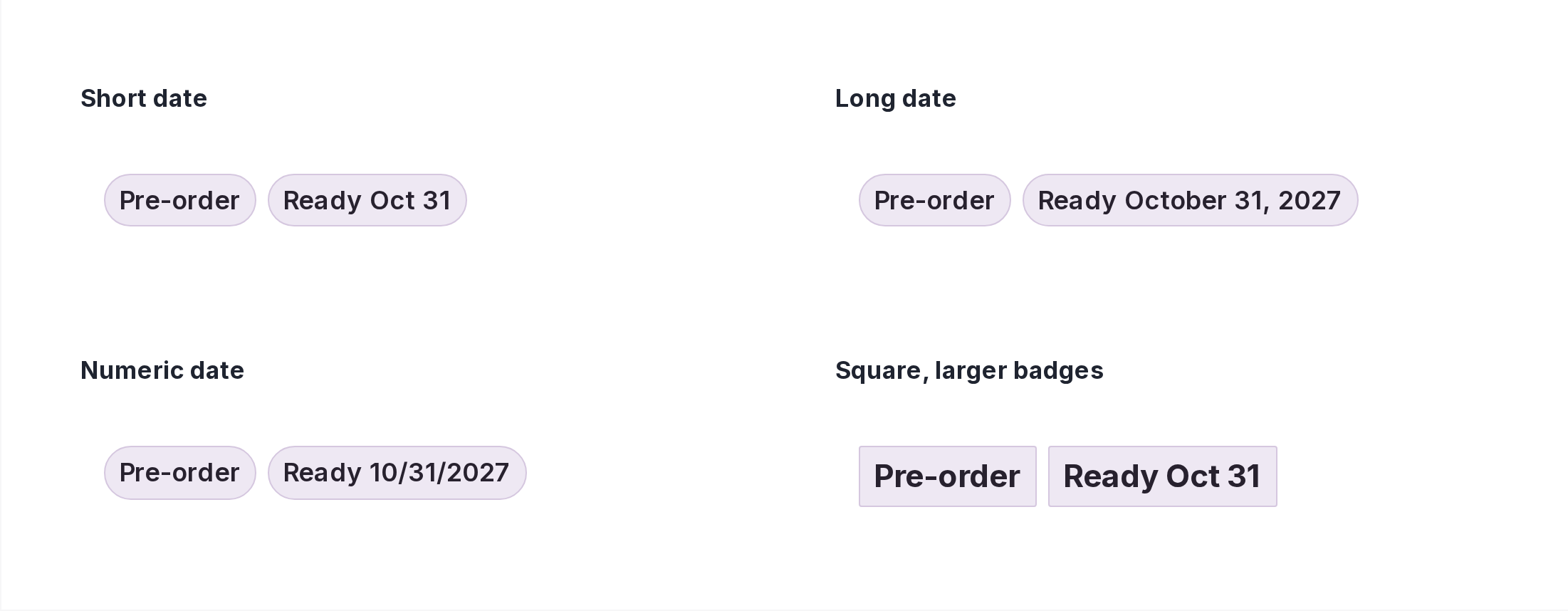
- Date wording must contain {date} exactly once, for example “Ready {date}”. Use plain text; emoji are allowed, HTML is not.
- Under Dates, Date format offers Short, Long and Numeric, each with an example. The shopper's language determines the exact formatting. Without JavaScript, the date stays readable in ISO form, such as 2026-10-31.
- The date itself comes from the product or selected variant's Addora availability settings. Change it under Pre-orders, Products; editing the wording does not change the date or promise a delivery day.
5. Decide what happens without a date or when sold out
Shopify availability determines Sold out. Under Dates, tick Keep the expected date visible when sold out to show both; leave it off and Sold out takes the date's place. The card layout starts with it off; the product page layout starts with it on.
- For a missing date, choose Hide the date or Show date to be announced under When the expected date is missing.
- When variants have different dates, the card does not invent one shared date. On the product page, changing the selected variant updates its date.
- Pending or unverified dates are hidden. When a date reaches the store's current day it disappears without becoming to be announced. A missing or hidden date alone does not mean the item is ready to ship.
6. Place information on a product page
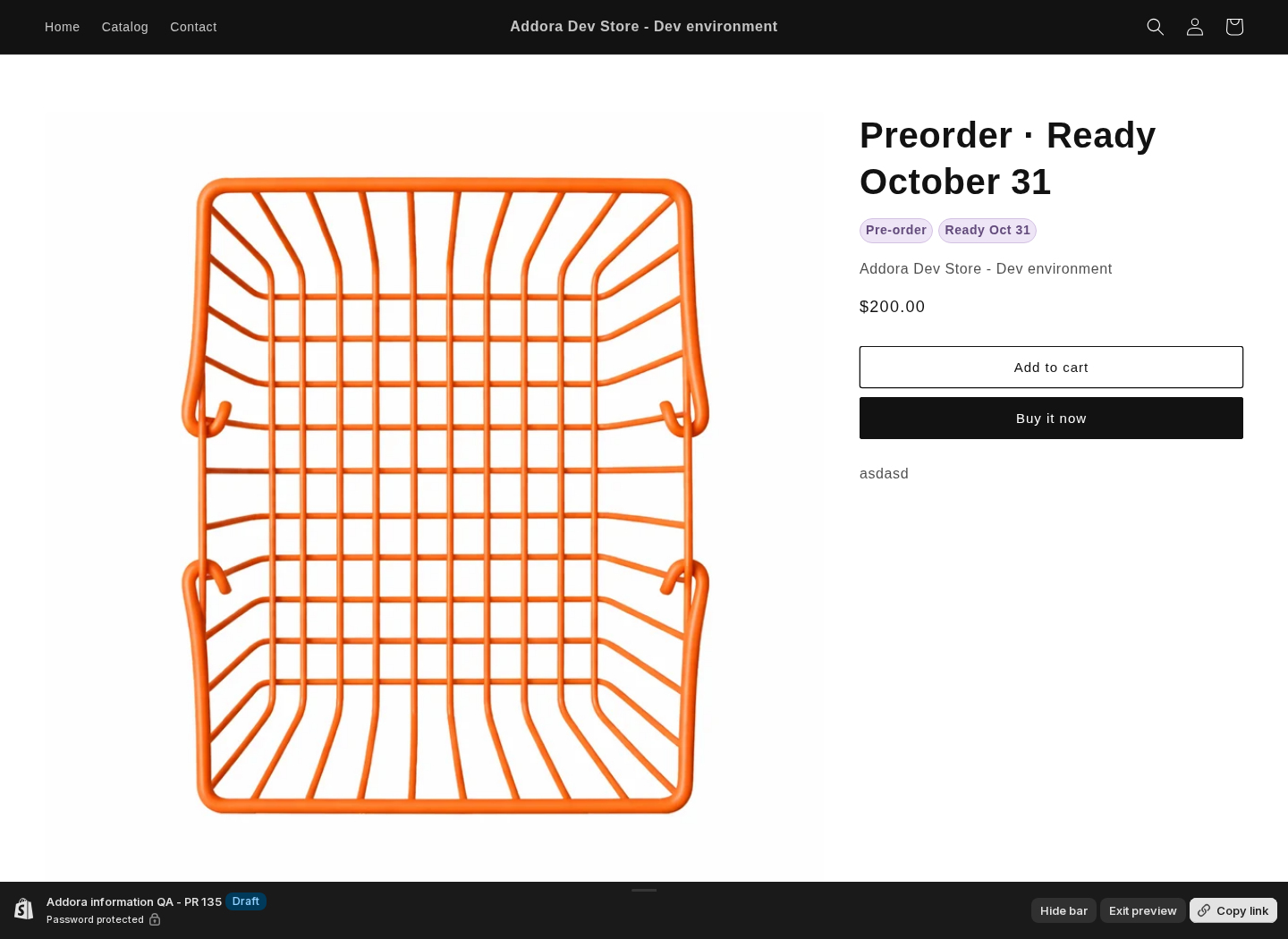
Product pages use a block you can move in the theme editor. No theme code is needed for this step. The block automatically follows the layout selected for Product page in Addora.
- In Shopify, open Online Store → Themes. Use the theme menu to Duplicate your theme. Open the copy in the theme editor (Customize or Edit theme).
- Use the page selector at the top to open Products and the template your product uses. In the preview, select a product with an expected date in Addora.
- In the product information section, choose Add block → Apps → Addora information. If the section has no app-block option, try an Apps section or ask your theme developer which section supports app blocks.
- Drag the block below the title or near the price. Leave the block settings at their defaults: it follows the current product and the Product page layout you choose in Addora. Adjust the items, wording and style in Addora.
- Save the theme. In Addora, enable Show on product pages and save appearance, then preview the copy. Addora settings apply store-wide, so any existing Addora blocks in the published theme can change too. Check variant selection, sold-out products and mobile before publishing the theme.
7. Install positions on product cards
Use this section for the small product cards on collection, search and recommendation pages. There are two files: the Addora snippet you create once, and your theme’s existing card file where you place the short calls. Start with Below the image if you want a simple position that does not cover the photograph.
- In Addora → Settings → Pre-orders → Storefront & checkout → Preorder appearance, select Product cards. Open each item’s Wording, position and style, choose Position on the card, and save. Under Set up on your theme, choose Get card installation, then Download snippet. Wait for pending publication if the download is not ready.
- In Shopify → Online Store → Themes, duplicate your theme if you have not already. On that copy, open the menu → Edit code. Select the snippets folder and create a new file named addora-information.liquid. Open the download in a text editor, paste its entire contents into the new file and save. This download belongs to your store; do not reuse another store’s snippet.
- Open the existing file that draws one product card. In Dawn, this is snippets/card-product.liquid. Other themes can use a different snippet or a block. Search the theme for the card’s title or image code and trace the product variable used there. If you cannot identify it, ask Addora support or your theme developer before changing that file.
Match the product variable. The supplied calls use product: card_product. If the card’s title is written as item.title, use product: item instead. Keep the parameter name product: unchanged. Use the same product object as the card, not its ID or handle. Paste the call inside the code for one card, so it repeats for every product; never outside the product loop.

- Add the render call from Addora at each selected position. Below the image: after the complete image container closes. Near the title: after the title heading closes. At the block or form: wherever you want inline information in the card. Image corners: add data-addora-card-position to the existing container around the image, and put the call directly inside that container before its closing tag. Keep its existing classes and attributes. Do not put the call inside an extra wrapper or inside the img tag.
- Only add one call per selected position in each card markup path. Items sharing a position use the same call. Save the file. Open that same theme in the theme editor → App embeds → enable Addora information display → Save. The downloaded snippet needs this embed for its styling and live updates.
- When ready to check, enable Product cards in Addora and save, remembering this is store-wide. Open the duplicate theme’s Preview from Shopify. Check a dated preorder, a sold-out preorder and a normal product on desktop and mobile. Also check search, recommendations, filtering and quick add: your theme may use different card files in those places. If anything is wrong, turn Product cards off again while you fix it. Publish the theme only after the preview looks right.

If it does not look right
- Nothing appears: check Product cards is on, the item is shown, publication is complete, and the product qualifies. A normal available product has no preorder badge; expired or pending dates are hidden.
- Badge in the wrong place: the item’s Position on the card must match the call’s placement value. Corner calls must be direct children of the container with data-addora-card-position.
- Text without the intended styling: enable Addora information display in the theme you are actually previewing, then save and reload.
- It works on collections but not search or recommendations: locate the separate card file for that page and install the same selected positions there.
- Addora still says None detected: Get card installation checks the published theme only. Refresh it after publishing. A detected position is not a visual check; preview the actual pages yourself. Reinstall and recheck after a theme replacement or an update that removes custom code.
Want help with your theme? Open the in-app chat and send the theme name, duplicate theme name, a product or collection example, and the positions you want. The illustrated example above is a guide to the insertion point; exact files and wrappers differ by theme.
8. Use the same styles in the cart and purchase notices
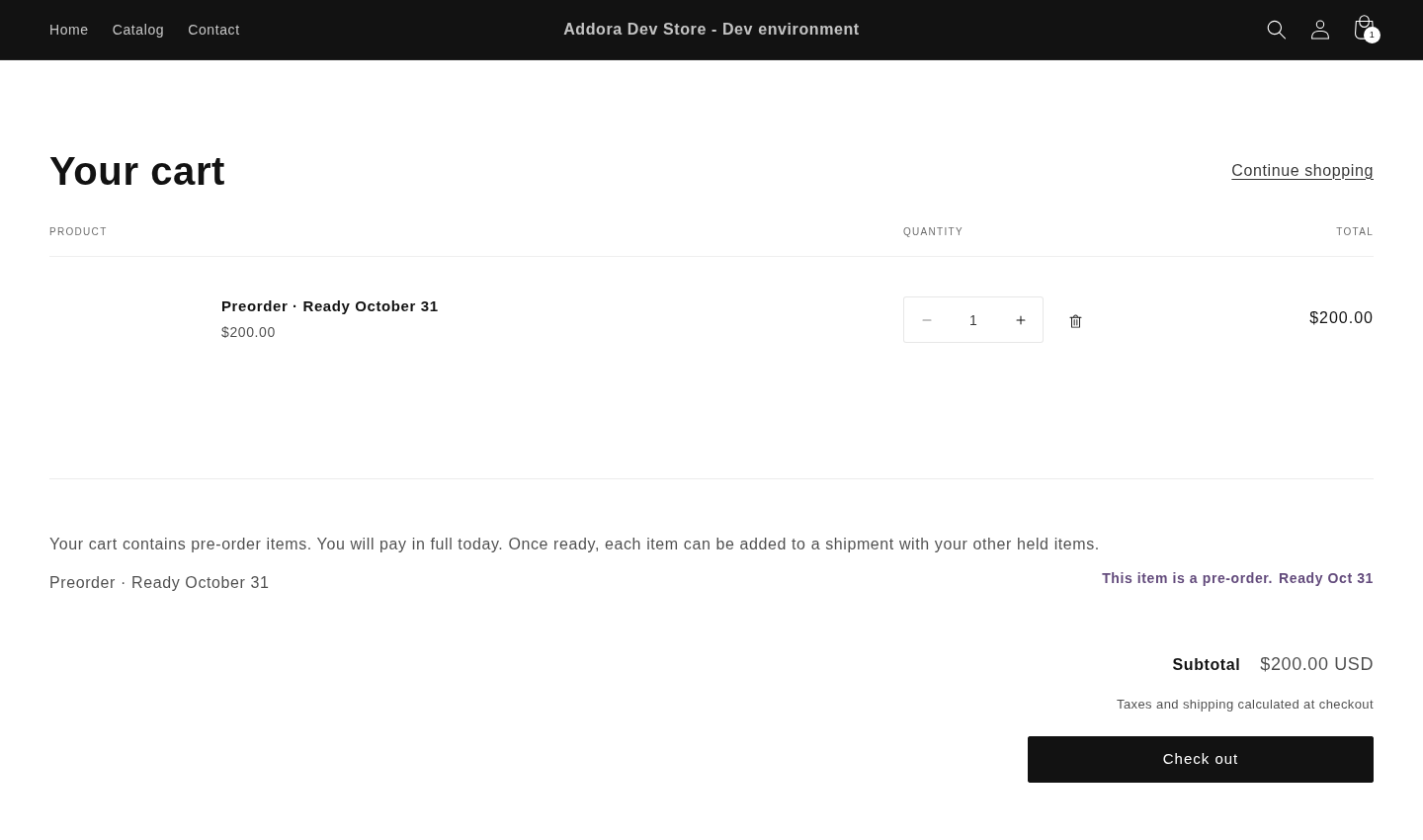
Cart reminders and native purchase notices choose from the same layouts. They use the existing Addora cart and product blocks and the purchase connection you already set up; an information block does not set up selling-plan selection.
- Required Shopify selling-plan and payment information stays visible. Appearance settings do not change payment terms, preorder eligibility or checkout enforcement.
- Save appearance, wait for catalog preparation or pending publication to finish, then check the storefront. If publication is pending, Addora retries, so a saved setting may not be visible right away.
- Before publishing, test product variants, collection filtering, quick add, cart and cart drawer, every storefront language, and mobile. After replacing your theme, reinstall and check its card positions. Use the existing preorder setup guides to configure the purchase flow.
STILL A QUESTION?
Let's work through it together.
Every store is a little different. We're here to help.