This is the full guide to Addora: what it does, how you set it up, what your customers experience, and how everything shows up in your Shopify admin.

If you only want the fast version, jump to The five-step fast path. The core setup really does take about five minutes, and you can layer on the advanced behavior later.

But if you want to understand the whole experience end to end, read on.

What Addora is

Addora adds a Buy Now, Ship Later shipping option to your store.

A customer checks out and pays for their items now, but instead of the order shipping immediately, it is held.

The customer can place several orders over days or weeks, then come back to a single page, pick the orders they want to combine, pay one shipping fee, and have everything ship together in one consolidated shipment.

That is good for the customer: fewer shipping fees and one box.

It is good for you too: fewer parcels, lower fulfillment cost, and a reason for customers to keep ordering before they ship.

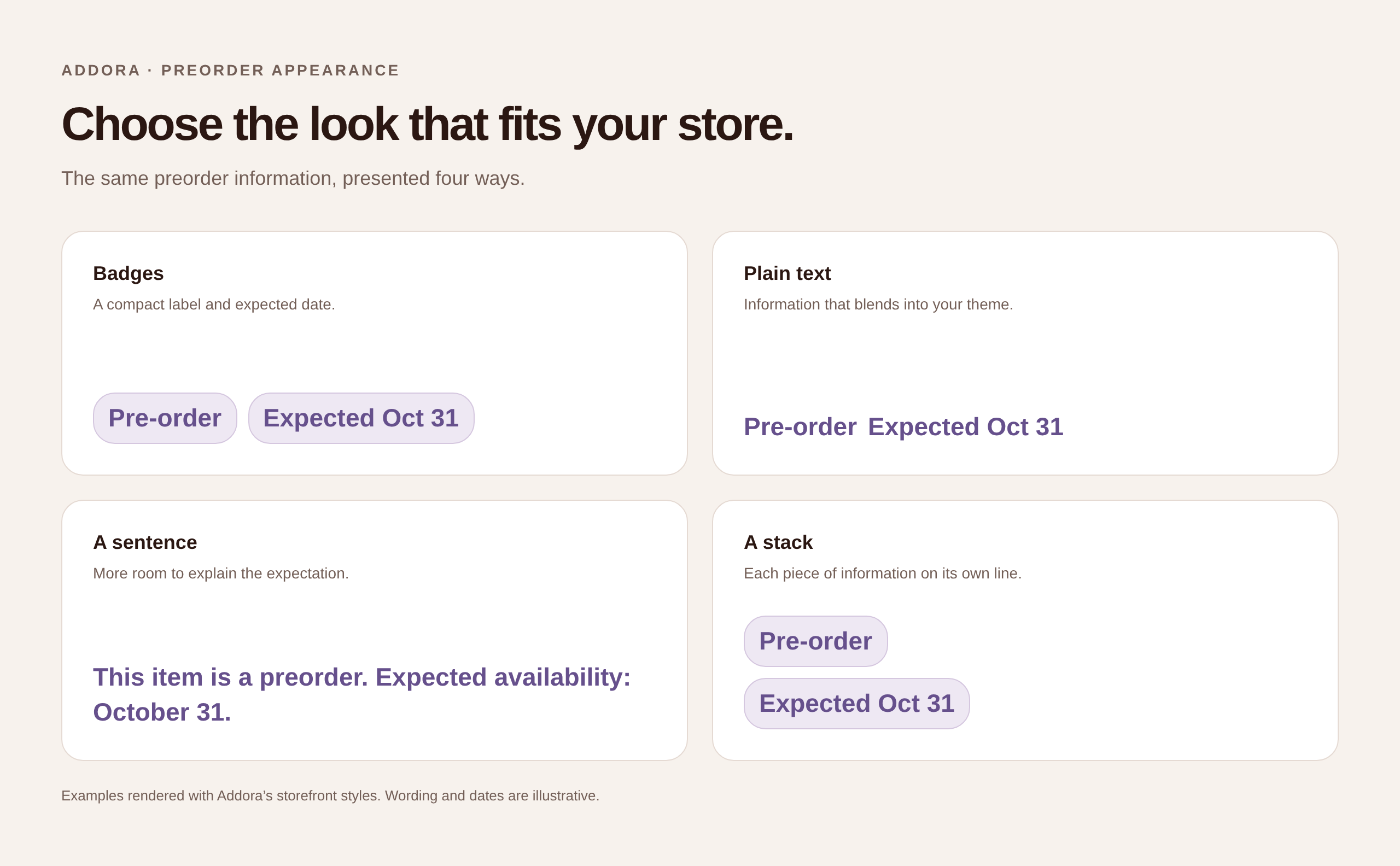
Addora also handles pre-orders and supplier items.

The same "hold now, ship later" experience powers products that are not ready to ship yet: items with a release date, launch-day drops, restocks, or made-to-order and drop-ship items that become available once a supplier confirms stock.

You can run plain Buy Now, Ship Later, run pre-orders, or run both at once, even in the same cart.

Everything runs on top of your normal Shopify orders, so your store, your reports, and your other apps keep working the way they always have.

The big picture: how a Ship Later order flows

Here is the whole experience in one mental model.

The rest of the guide expands each piece.

  1. The customer checks out and selects your Ship Later shipping method. Optionally, they first acknowledge a short opt-in message explaining what Ship Later means.
  2. The order is created and paid like any normal order, but it is held, so it will not ship yet.
  3. The order sits as pending. The customer gets order emails, which you tailor so they are not confused, and can see the held order in their account.
  4. When the customer is ready, they visit your Order Summary page, select which held orders to combine, and click Ship Now.
  5. Addora calculates a shipping fee for the bundle and sends the customer to a quick checkout to pay it.
  6. Once that payment lands, the original orders are released and move toward fulfillment. The customer gets one tracking number for the combined shipment.
  7. The orders move through clear stages: pending, then dispatching, then shipped. Your admin reflects each step with labels and tags you control.

What you need before you start

Before you start, make sure you have:

  • A Shopify store.
  • Admin access so you can install the app, publish theme changes, and approve billing.
  • A rough idea of how you want Ship Later to appear at checkout: the name, the short description, and which products it applies to.

One thing worth knowing up front: the core Ship Later flow works on every Shopify plan.

That includes the shipping method, the Order Summary page, emails, holds, and consolidation.

The one exception is the in-checkout opt-in experience, which Shopify only supports on Shopify Plus because it is built as a checkout UI extension.

That means both opt-in styles, warn and block, are Plus-only.

On non-Plus plans, you will set expectations through your shipping method copy and order emails instead.

When you install Addora from the App Store, you land on the Dashboard.

Everything is organized clearly:

  • Dashboard: your live overview
  • Onboarding: the required setup
  • Operations: day-to-day activity
  • Settings: customize behavior
  • Guides: help articles and walkthroughs
  • Pricing: manage your plan
  • Diagnostics: troubleshoot when needed

The five-step fast path: getting live

Onboarding is five required steps.

Do them in order from the Onboarding section, and your store is "configured" once all five are complete.

The five steps are:

  1. Plan
  2. This answers: is billing active?
  3. Checkout Copy
  4. This answers: what should customers see at checkout?
  5. Delivery Profiles
  6. This answers: which products should offer Ship Later?
  7. Emails
  8. This answers: will your order emails confuse customers?
  9. Customer Orders Page
  10. This answers: where can customers manage pending orders?

Step 1: Choose your plan

The first thing Addora checks is whether billing is active.

You pick a plan and approve the Shopify subscription charge. Once billing is active, Ship Later can start accepting orders.

Every plan starts with a 30-day free trial, so you can get live and test the flow before paying.

Plans scale with you:

  • Free
  • $0 per month.
  • Includes 10 orders per month.
  • No overage. Ship Later stops showing after 10 orders.
  • Starter
  • $12 per month.
  • Includes 25 orders per month.
  • Extra orders are $0.08 per order.
  • Monthly cap: $99.
  • Growth
  • $39 per month.
  • Includes 100 orders per month.
  • Extra orders are $0.07 per order.
  • Monthly cap: $199.
  • Hustler
  • $69 per month.
  • Includes 250 orders per month.
  • Extra orders are $0.06 per order.
  • Monthly cap: $299.
  • Enterprise
  • $99 per month.
  • Unlimited orders.
  • No overage and no monthly cap.

A few things worth knowing:

  • Free stops showing Ship Later after 10 orders in a month. There is no overage. It also keeps a small "Powered by Addora" credit and uses the default method name. Custom copy, advanced shipping rules, and customer reminder emails are paid features.
  • Starter, Growth, and Hustler bill a small amount per extra order, but each has a hard monthly cap, so a sudden spike cannot create runaway costs.
  • Enterprise is unlimited, with dedicated support and white-glove onboarding.

Step 2: Set your checkout copy

This is what your customers actually see.

You choose:

  • A shipping method name, for example Ship Later or Reserve now, ship later.
  • A short description, up to 25 characters, to make the option instantly clear.

Addora keeps a small identifier in the saved method name so it can reliably recognize its own shipping option, including across translated versions.

It adds that automatically, so you do not have to think about it.

You can rename the method later and Addora reconciles the change across your delivery profiles for you.

You can also set a base shipping fee here.

This is the fee charged later when the customer confirms shipment.

If you would rather drive pricing entirely through country rules and conditions, leave the base fee at zero.

Step 3: Choose your delivery profiles

Decide which products actually offer Ship Later.

Every store has at least the default General profile.

If you use multiple profiles, for example for oversized goods, separate warehouses, or digital products, choose exactly where Ship Later appears.

Select every profile that should expose the method.

If a product lives in a profile you did not select, Ship Later will not appear for it at checkout.

This is your control surface: make Ship Later storewide, or keep it focused on the products where it makes the most sense.

Step 4: Update your email notifications

A Ship Later order is paid but not shipping yet.

If you leave Shopify's default order emails untouched, customers can get the wrong impression.

They may wonder: "Why hasn't my order shipped?"

This step closes that gap.

Addora gives you a template builder with live preview, so you can customize the subject line, headline, body copy, button label, and callout blocks.

When you are happy, copy the generated snippet into the matching Shopify notification template in your admin.

This one step prevents the most common source of Ship Later support tickets.

Step 5: Add the customer orders page

This is where the flow comes together for the customer.

The Order Summary page is where they review pending Ship Later orders, decide which to combine, and check out when ready to ship.

Setup:

  1. Create or choose a published page in Shopify admin, usually something like Order Summary.
  2. Add that page to your main navigation.
  3. In the theme editor, add the Customer Orders app block to the page.
  4. Optionally enable the Ship Now button on product pages, account pages, or order history pages to pull customers back into their pending bundle quickly.

Once this page is live, customers have a clear, self-service home for everything.

After these five steps, Addora is live and you can start taking Ship Later orders.

Many merchants stop here.

The rest of this guide is what you grow into.

Setting up pre-orders and supplier items

This part is optional.

If you sell items that are not ready to ship at order time, such as pre-orders, launch-day drops, restocks, supplier items, drop-ship products, or made-to-order items, Addora has a short guided setup under Settings → Pre-orders.

It asks a few questions and only shows the steps that apply to what you sell.

The questions walk through:

  1. Mixed orders?
  2. Do customers ever buy in-stock items together with pre-orders or supplier items?
  3. How should mixed orders behave?
  4. This only appears if you answered yes.
  5. There are four choices:
  6. Which item types do you sell?
  7. Pre-orders, supplier items, both, or neither.
  8. How should we recognize each type?
  9. By a product tag, which is recommended, or by a product metafield.
  10. You can test the recognition against a real product and see how Addora would classify it.
  11. When does it become ready to ship?

A Review screen lets you change any answer before you press Finish.

Nothing is final until then.

When you finish, pre-orders turn on and your choices go live.

If you change how products are recognized, Addora re-checks your catalog in the background and shows you when it is done.

The key idea: pre-order and supplier items are held just like Ship Later orders, and they release automatically when their release condition is met.

That means the in-stock part of an order can go out right away while the rest waits.

What the customer sees, end to end

At checkout

When a customer's cart qualifies, Ship Later appears in the shipping method list.

You control whether it is listed first or last.

If you are on Shopify Plus and have enabled the opt-in experience, selecting Ship Later shows a short explanation so nobody is surprised later.

The default copy, which is all editable, reads:

About Ship Later: Ship Later holds your order so you can combine it with future orders into one shipment. Shipping is charged when you bundle, not now.

A What is Ship Later? link opens a message that spells out the terms:

Ship Later does not ship your order right away. Your order will be held.
Shipping is not free. You will be charged for shipping later when you combine and ship your held orders.
To ship your held orders, visit your Order Summary page and select the orders you want to bundle together.
Only choose Ship Later if you want to wait and combine multiple orders into one shipment.

The opt-in is a Shopify Plus feature, and it comes in two styles:

  • Warn mode: shows the explanation but does not stop a customer who skips it.
  • Block mode: requires the customer to acknowledge the terms before checkout can continue.

Right after checkout

The order is created and paid, and held.

From the customer's side, it behaves like a normal paid order, except it will not ship until they bundle it.

This is why Step 4, emails, matters: your tailored confirmation copy sets the expectation that the order is reserved, not yet shipping.

Addora can also send a gentle reminder email if a customer leaves reserved items sitting too long.

This is off by default and available on paid plans.

By default, the reminder sends after about two weeks.

You control the subject, copy, and call to action, and every reminder includes one-click unsubscribe.

The Order Summary page

On the page where you placed the Customer Orders block:

  • Logged-in customers see a list of their orders, including order number, total, date, and status. They can use optional filters and search, plus a Ship Pending Orders Now button.
  • Guests are prompted to log in first.

Clicking Ship Now opens the Your Pending Items view.

Inside that view:

  • All held orders are listed, grouped by order, with item names and quantities.
  • Orders are selected by default.
  • A live summary shows how many orders and items are selected and the subtotal, updating as customers toggle orders.
  • A Shipping Fees breakdown shows the fee for the bundle, including any discount.
  • The view can show messages like Free shipping will be applied at checkout or A shipping discount will be applied.
  • A note clarifies that the final total is calculated at checkout.
  • Proceed to Checkout stays disabled until at least one order is selected.

Optional Ship Now buttons on account and order pages are shortcuts back to this page.

The account button can even show a Held badge on orders that are currently reserved.

Checking out the bundle

When the customer proceeds, Addora prepares their selected bundle, calculates the shipping fee, and sends them to a quick Shopify checkout to pay it.

If something changed while they were deciding, for example if an item is no longer available, they get a clear please refresh message rather than a broken checkout.

Once they pay, their original orders are released and move toward fulfillment.

They receive one tracking number for the combined shipment.

What you see in your Shopify admin

This is the part merchants care about most: how Ship Later orders look in your normal Shopify orders overview, and how they move through their stages.

The stages an order moves through

Every order Addora touches moves through clear stages, and you choose the customer-facing label for each.

The stages are:

  • Pending
  • Default label: Shipping Pending.
  • What it means: the order is a paid Ship Later order and is currently held.
  • What you see: the order is paid but cannot be fulfilled yet.
  • Released
  • Default label: Dispatching.
  • What it means: the hold has been lifted and the order is ready to fulfill.
  • What you see: fulfillment is unblocked.
  • Billing
  • Default label: Billing Order.
  • What it means: this is the order that collects the shipping fee.
  • What you see: a separate order for the consolidation payment.
  • Shipped
  • Default label: Shipped.
  • What it means: the order is fulfilled, with tracking.
  • What you see: orders show fulfilled with tracking.

Pending: the held order

The moment a Ship Later order comes in, it is paid in your admin, optionally tagged with your pending tag, for example Ship Later, and held so it cannot ship early.

That hold is the guarantee that a paid order will not go out the door before the customer bundles it.

When the customer pays the shipping fee

When the customer combines and pays, Addora handles the rest.

You have two consolidation styles to choose from in Settings → Fulfilment, depending on your business.

Combined

One extra order collects the shipping payment and represents the combined shipment.

The original orders are released, your tags are applied, and tracking is synced back so the customer sees one tracking number.

This is often simplest for domestic stores.

Split payment and shipment

One order collects the payment and a separate order represents the actual shipment with its real products.

This is usually the better fit for cross-border stores, where the shipment needs accurate product details for customs.

In both styles, you can choose to auto-fulfill the original orders once consolidation succeeds, if you have granted the fulfillment permission.

You can also hide specific shipping methods during the consolidation checkout so customers do not accidentally pay shipping twice.

Tags you control

Addora can apply optional, fully customizable order tags at each stage so you can drive Shopify Flow automations, customer segments, and integrations.

The available tags are:

  • Pending tag
  • Applied when the order is created and held.
  • Example: Ship Later.
  • After-shipping tag
  • Applied when the order is released after payment.
  • Example: Ready to Ship.
  • After-billing tag
  • Applied on the billing or consolidation order.
  • Example: Consolidated.
  • After-fulfillment tag
  • Applied once the order is shipped with tracking.
  • Example: Shipped.
  • Shipment-order tag
  • Applied on the split-mode shipment order.
  • Example: Shipment Order.

You choose the values, as long as they stay within Shopify's tag rules.

A quick what-shows-where summary

Here is how the order flow appears inside Shopify:

  • Just created
  • Original order or orders: paid, held, and marked Shipping Pending.
  • Extra order or orders: none.
  • Paid, combined style
  • Original order or orders: Dispatching, with hold released.
  • Extra order or orders: new billing order.
  • Paid, split style
  • Original order or orders: released toward fulfillment.
  • Extra order or orders: a payment order and a shipment order.
  • Fulfilled
  • Original order or orders: Shipped with tracking.
  • Extra order or orders: consolidation order or orders fulfilled.

Mixed orders: ship part now, hold the rest

When you sell in-stock and not-yet-ready items together, your handling choice from the pre-order setup decides the experience.

There are two main options:

  • Whole order: the entire order is held until everything is ready, then ships as one.
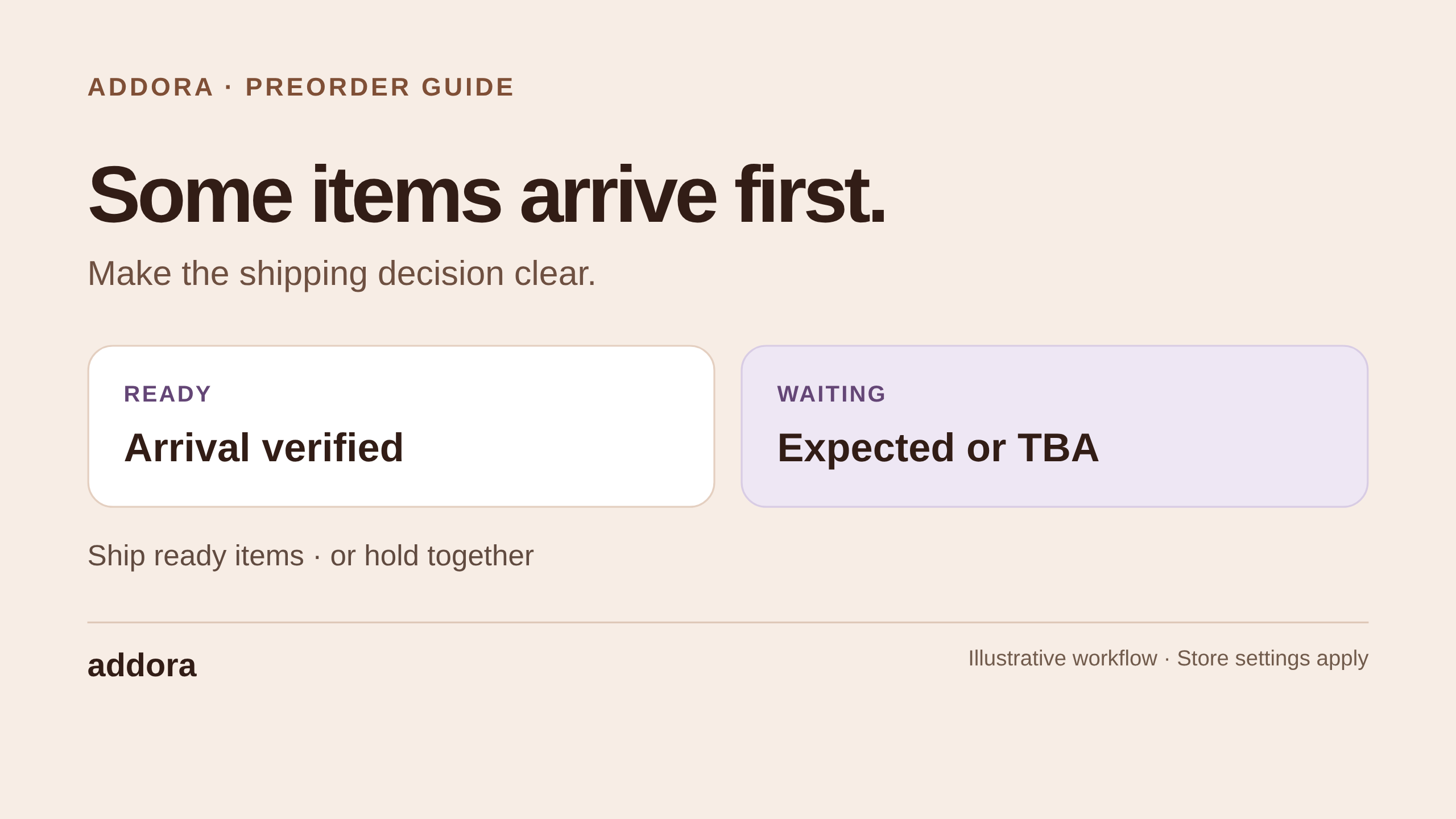
  • Split: the in-stock items can ship right away, while the pre-order or supplier items keep waiting until they are ready, then go out with the next bundle.

Pre-order and supplier items release automatically once their condition is met, such as a release date arriving or a supplier confirming stock.

You do not have to babysit each order.

Shipping rules: countries and conditions

This is where pricing gets powerful.

There are three layers, applied together:

  1. Base shipping fee
  2. A global default charged on consolidation.
  3. Country rules
  4. A per-country base fee, so shipping to one country can cost differently than another.
  5. Conditions
  6. Rules layered on top, based on the bundle's price, weight, or quantity.

Each condition can:

  • Add a fee
  • Apply a discount, either a fixed amount or a percentage, up to free shipping
  • Make shipping free

With these rules, you can offer free Ship Later over a threshold, add a handling surcharge for single-item bundles, or discount large bundles to encourage more accumulation before shipping.

Advanced conditions are a paid-plan feature.

The fee a customer sees in the Ship Now view, and pays at checkout, is the result of these three layers for their selected bundle.

Settings reference

Settings live under Settings, organized into tabs:

  • Delivery & Checkout
  • Shipping method name and description, delivery profiles, where Ship Later appears in the list, and the opt-in experience, including warn vs. block mode and all its copy.
  • Lifecycle & Tags
  • The customer-facing stage labels and the order tags.
  • Shipping Rules
  • Countries and conditions.
  • Fulfilment
  • Whether to hold orders, whether to auto-fulfill after consolidation, your consolidation style, and which shipping methods to hide during the consolidation checkout.
  • Pre-orders
  • Turn pre-orders on or off, choose how Ship Later behaves in mixed carts, and set how products are recognized and when they release.
  • Email automations
  • The reminder email and order-status update email, each with editable subject, copy, and call to action.

Emails and notifications

Addora sends a few customer emails:

  • Reminder email
  • Nudges customers who have left reserved orders unbundled for a while.
  • Off by default and available on paid plans.
  • Order status update
  • Informs customers when the status of their reserved orders changes.

All customer-facing reminders include one-click unsubscribe and honor opt-outs, so you stay compliant.

Do not forget the related work in Step 4: tailor your Shopify order confirmation template so a paid-but-held order reads correctly.

That template lives in Shopify.

Addora just gives you the copy to paste in.

Operations, diagnostics, and getting help

After launch, the area you will live in most is Operations.

That is where you can:

  • track pending-order trends
  • review customer segments
  • estimate fees
  • view country-level performance
  • drill into a specific customer's bundle

The Pending Orders Queue is your working view of all paid-but-not-shipping orders.

Customer Bundle Detail zooms into exactly what one customer has reserved and what their Ship Now flow will look like.

Most merchants let customers self-serve, but the data is there when you want to reach out to someone sitting on a large bundle.

When something behaves unexpectedly, start with:

  • Guides: email templates, storefront setup, checkout UI, and troubleshooting.
  • Diagnostics: health checks and a record of recent activity to help you debug.

And if you need us, email [email protected].

We aim to reply within 24 hours on business days.

Enterprise merchants get dedicated support and white-glove onboarding.

A worked example, start to finish

To tie it together, here is one customer's journey using the combined style with auto-fulfill on.

  1. Monday
  2. Maria buys a $40 hoodie, picks Ship Later, and acknowledges the opt-in message.
  3. The order is paid, tagged Ship Later, marked Pending, and held.
  4. Your confirmation email tells her it is reserved.
  5. Wednesday
  6. Maria buys a $25 hat, also Ship Later.
  7. Same treatment.
  8. Friday
  9. Maria visits your Order Summary page, sees both held orders, and leaves both selected.
  10. The view shows a $6 base fee minus a large-bundle discount, resulting in $3 shipping.
  11. She clicks Proceed to Checkout.
  12. Payment
  13. She pays the $3.
  14. Release and fulfillment
  15. A billing order appears in your admin.
  16. Maria's two orders flip to Dispatching, their holds release, and because auto-fulfill is on, they are fulfilled and move to Shipped.
  17. Tracking
  18. Maria gets one tracking number, synced onto both orders.
  19. You ship one box instead of two.

Switch to the split payment-and-shipment style and step 5 instead gives you a payment order plus a shipment order carrying the real products.

That is ideal if Maria is in another country and you need accurate customs details.

The best way to think about setup

  • Day one: complete the five onboarding steps: plan, checkout copy, delivery profiles, emails, and customer orders page.
  • Before launch: make sure checkout copy, the order-confirmation email, and the Order Summary page feel right.
  • As you grow: add country rules, conditions, lifecycle tags, and automation.
  • If you are on Shopify Plus and want in-checkout messaging: turn on the opt-in experience. Use warn for a soft heads-up, or block to require acknowledgement.
  • When you sell pre-orders or supplier items: run the pre-order setup and pick whole-order vs. split.
  • When you go international: switch to the split payment-and-shipment style for accurate customs details.

The whole point of Addora is to make Buy Now, Ship Later feel natural for both you and your customers: paid now, shipped when they are ready, consolidated into one shipment, with your admin reflecting every step clearly.

Get the five essentials live fast, start taking orders, and refine from there.

Five steps, a few minutes, and you can start giving your customers a much better way to buy.